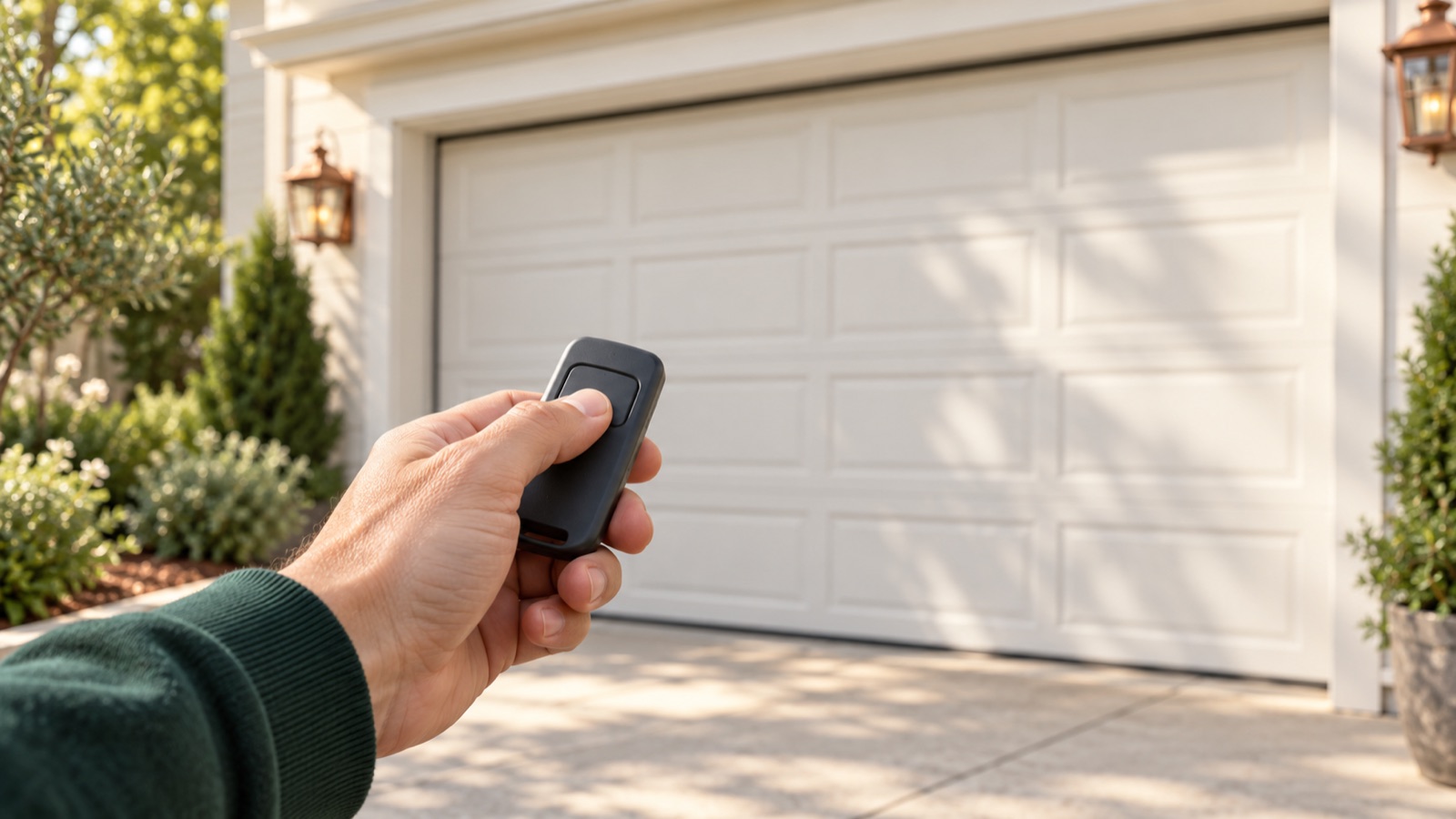
How to Program a Clicker Garage Door Remote
Quick answer
To program a Clicker remote, identify its exact model and the opener it will control, then use the compatibility chart and sequence for that pair. The required button count belongs to a particular remote manual; it is not a universal code for the opener brand.
We recommend separating the job into three stages: select the supported radio system, teach the opener, and confirm the saved assignment. Skipping the last stage can leave a remote apparently successful but not ready for everyday use.
First, check what “Clicker” means here
This guide concerns handheld Clicker remotes such as the KLIK1U and KLIK5U. An exterior Clicker keypad is a different accessory and needs keypad instructions. If you have a KLIK2U keypad, do not use a handheld remote's press-count chart.
Read the entire model and suffix from the remote label. Then record the opener model, its learning-control type, and any external receiver. Photograph the labels for your private notes without exposing access codes.
Allow about 20–30 minutes for identification, setup, and testing. You need the correct manual, a working remote battery, and safe access to the permitted opener controls. The task may take longer if an old receiver must be identified.
1Verify the exact chart before programming
Chamberlain's KLIK3U/KLIK5U support page separates instructions associated with pre-2022 equipment from its later Step Saver Setup guidance. This is one reason a copied chart without its model and revision context is not enough.
Match the device to the manufacturer's instructions and check every restriction. The Clicker user guide requires the garage opener to have photoelectric safety sensors; do not pair this accessory to an installation lacking that protection. A universal remote supports a defined collection of systems; the word universal does not promise every generation or every opener sold under a familiar name.
2Prepare for movement during setup
Clear people, pets, vehicles, and stored items from the doorway. Start in the position required by the selected instructions. Keep the door fully visible and make sure another household member is not using a transmitter at the same time.
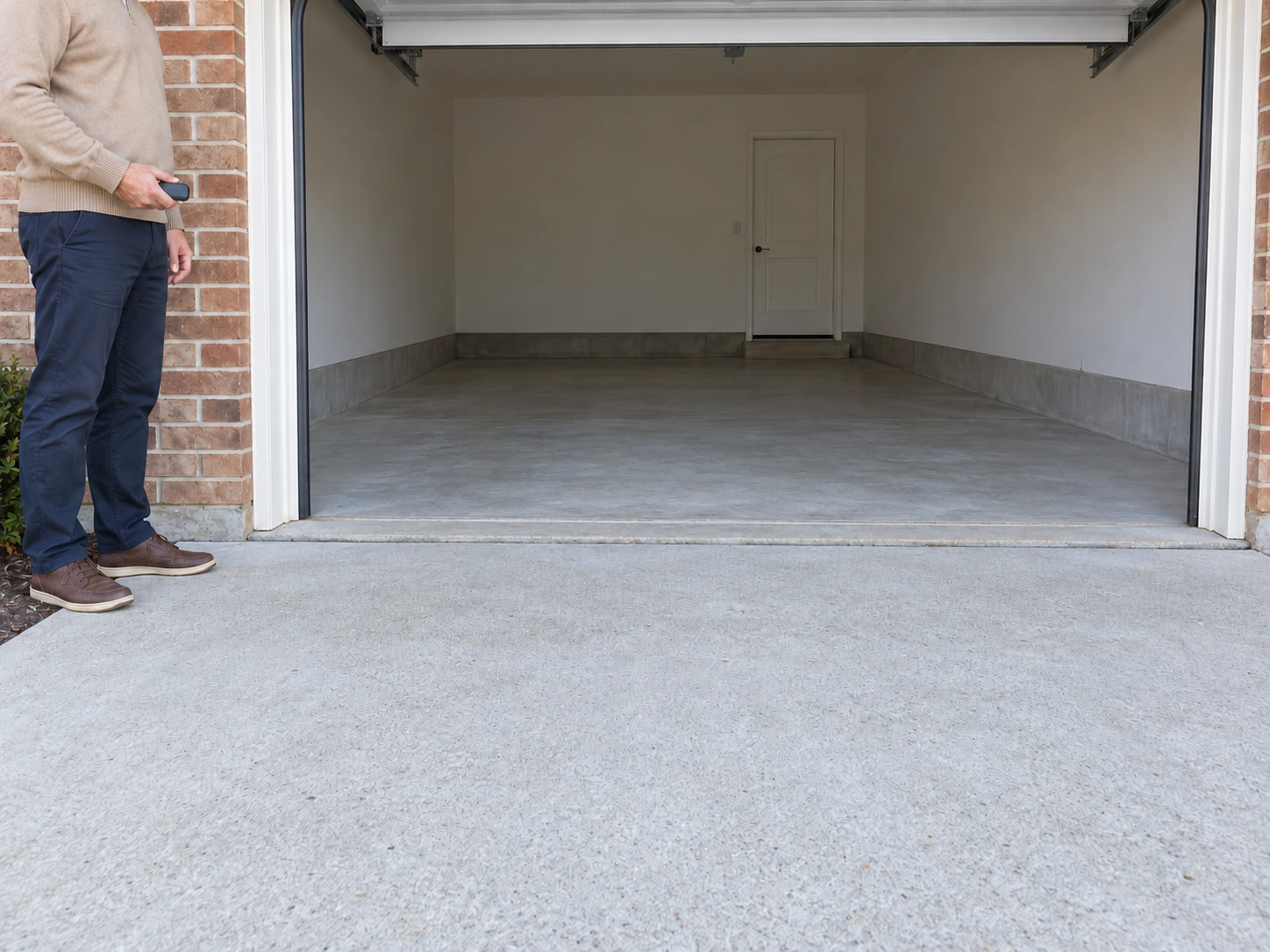
Stand outside the door’s path with the opening clear before setup. Supported programming procedures can move the door. This scene shows preparation, not a model-specific remote command.
If you need a ladder, finish reading before climbing. Do not lean across the rail or touch the springs, cables, or moving carriage. A door with mechanical damage is a reason to stop, even if the remote itself is new.
Only pair devices you are authorized to use. Do not use learning mode as a way to obtain access to another person's garage.
3A specific example: KLIK1U/KLIK5U and Genie Intellicode
KLIK1U + Genie 3060L: prepare, pair and test
Use this worked route only for KLIK1U with a compatible Genie 3060L. Start with the door closed, the entire doorway clear and fully in view. The door activates during programming.
Scroll sideways for detail, or open the full-size diagram. The complete instructions are written below.
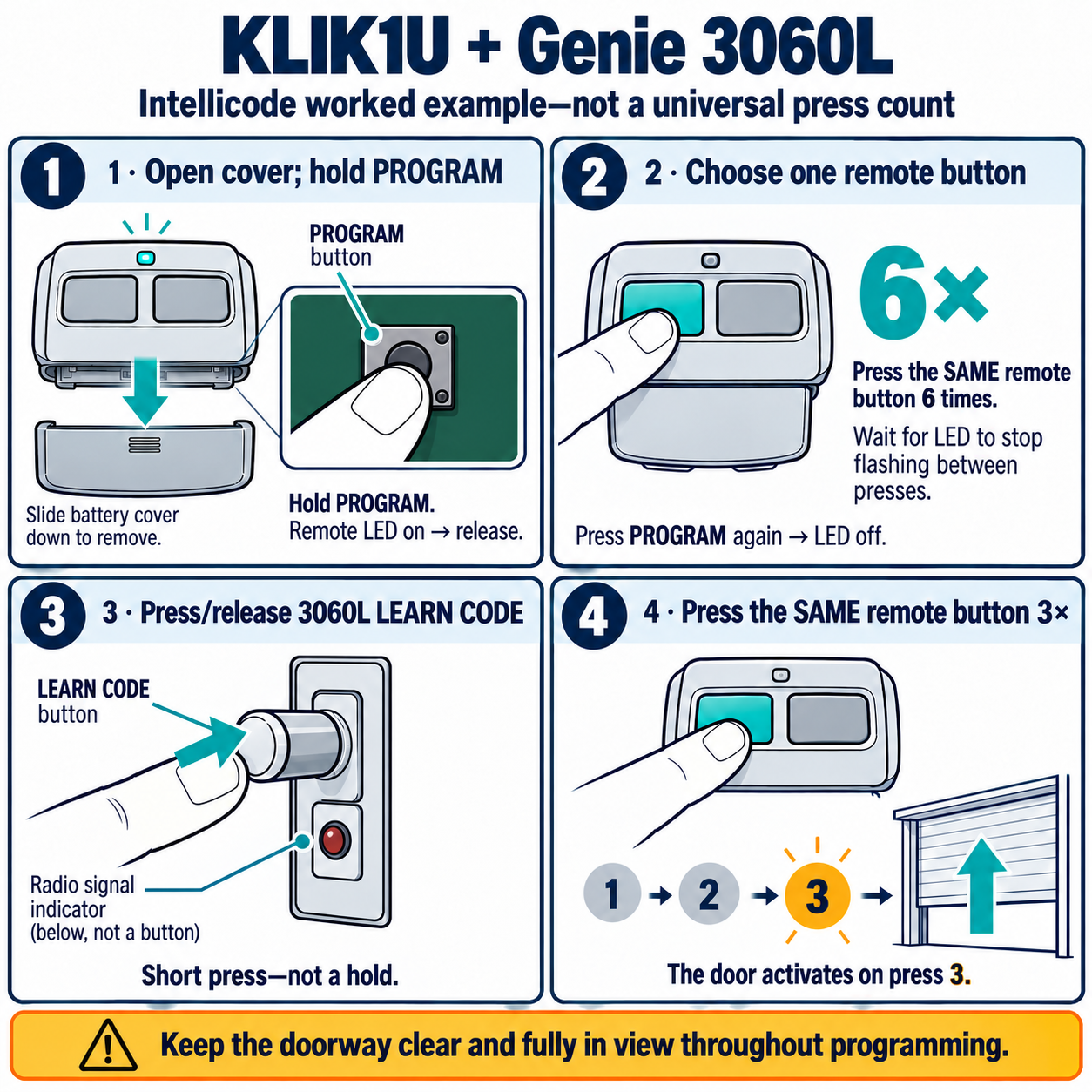
Open full-size diagram and zoom (new tab)
- Slide the KLIK1U battery cover down. Hold its black PROGRAM button until the remote LED comes on, then release.
- Choose one operating button. Press and release it six times, waiting for the LED to stop flashing between presses.
- Press PROGRAM again to switch the LED off.
- Press and release the 3060L receiver LEARN CODE button. Do not hold it; holding belongs to erasure. The radio signal indicator is below the button.
- Press the SAME selected KLIK1U operating button three times. On successful programming, the third press activates the door.
- Test the intended button with the doorway clear and in view. If unsuccessful, stop and follow the source’s alternate ID 5 route rather than substituting another remote’s recipe.
Manufacturer reference 1 · Manufacturer reference 2 · Manufacturer reference 3
Chamberlain publishes a separate procedure for KLIK1U or KLIK5U paired to the covered Genie Intellicode systems, mentioning the 3060L as an example. Use this only after confirming that your models fall within that guidance.
- Open the remote's battery cover and hold its black program button until the remote LED illuminates.
- Choose the operating button. Press it six times, waiting for its indicator to finish flashing between presses.
- Press the black program button to end that preparation stage.
- Briefly press and release the compatible opener's LEARN control.
- Press the chosen remote button three times. Under this procedure, successful setup activates the door on the third press.
- Test the saved button with the door in view.
If it fails, recheck the documented compatibility and its alternative-chart guidance before retrying. Do not automatically apply six presses to every Genie, or transfer this procedure to a different universal remote.
KLIK1U + Genie 3060L: the model-specific exception route
- Use only this identified KLIK1U + Genie 3060L combination, not a different Clicker model or a generic chart.
- Start with a sound door fully closed, correctly functioning photoeyes, and its entire travel path clear and visible. Keep everyone outside the path.
- Use a powered remote with its battery correctly installed; slide down only its battery cover. The artwork isolates controls and does not instruct battery or circuit-board removal.
- Read the complete sequence before starting. After the opener LEARN tap, begin authorization within 30 seconds. The third confirmation press moves the door. Use safe stable access to the opener.
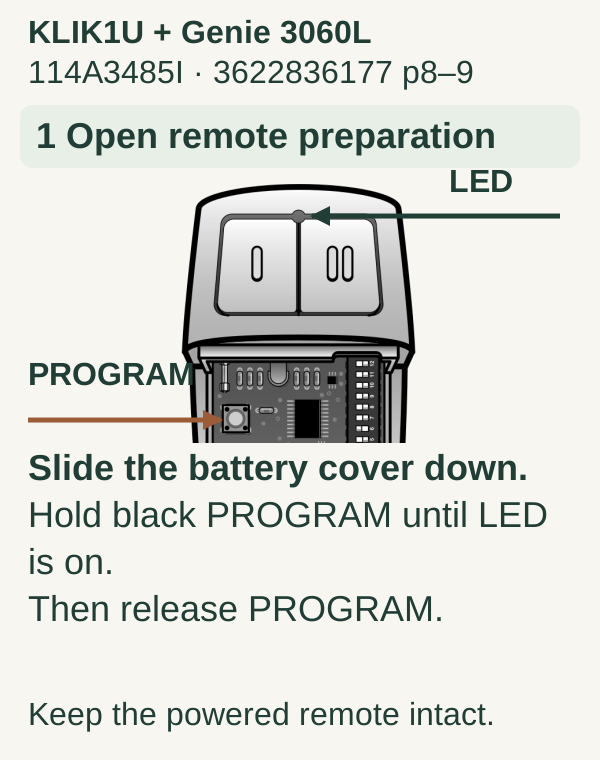
Scroll within the image if needed, or open the full-size view. The key details are also written below.
Use only the named KLIK1U and Genie 3060L combination. With the powered remote intact, slide its battery cover down. Hold the black PROGRAM button until the remote LED comes on, then release. Do not remove the battery or circuit board to follow this view.
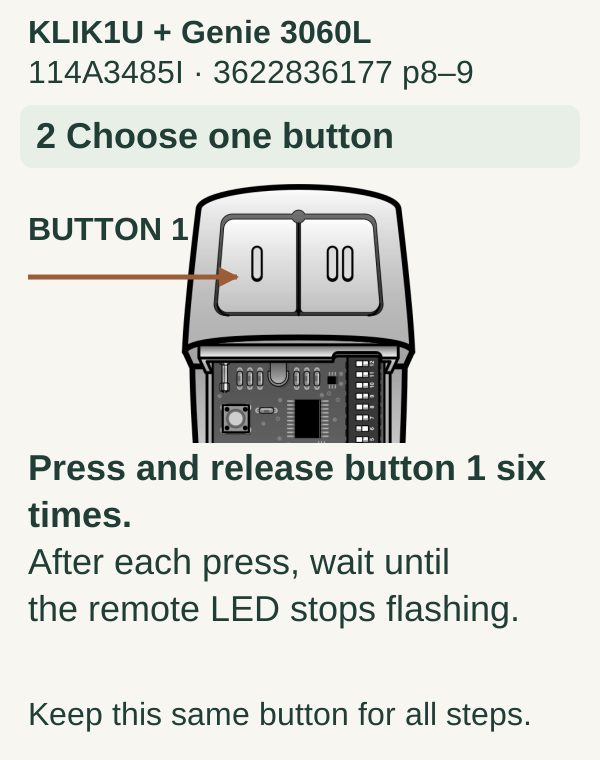
Scroll within the image if needed, or open the full-size view. The key details are also written below.
Choose one operating button; button 1 is selected in this example. Press and release it six times, waiting after each press until the remote LED stops flashing. Keep this same button for the remaining steps.
Scroll within the image if needed, or open the full-size view. The key details are also written below.
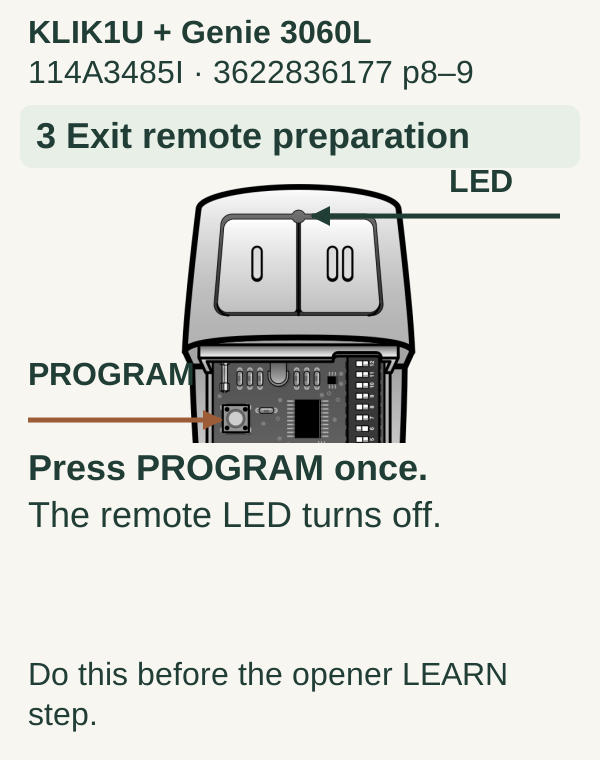
Press PROGRAM once to end remote preparation. The remote LED turns off. Complete this stage before using the opener’s LEARN CODE button.
Scroll within the image if needed, or open the full-size view. The key details are also written below.
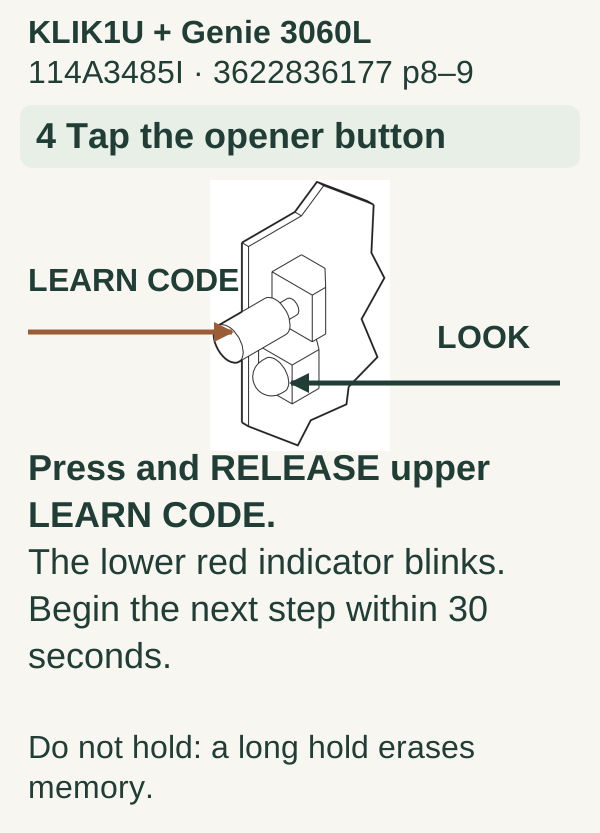
Briefly press and release the upper LEARN CODE button on the 3060L receiver. The lower red indicator blinks. Begin the next step within 30 seconds. Do not hold LEARN CODE: a long hold erases memory.
Scroll within the image if needed, or open the full-size view. The key details are also written below.
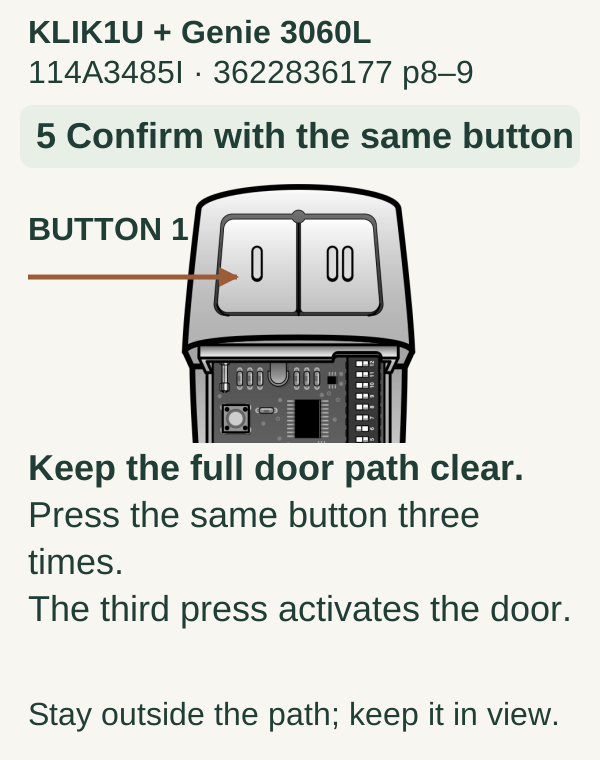
Keep the full door path clear and in view. Press the same selected remote button three times. Under this model-specific procedure, the third press activates the door; stay outside its path.
Scroll within the image if needed, or open the full-size view. The key details are also written below.
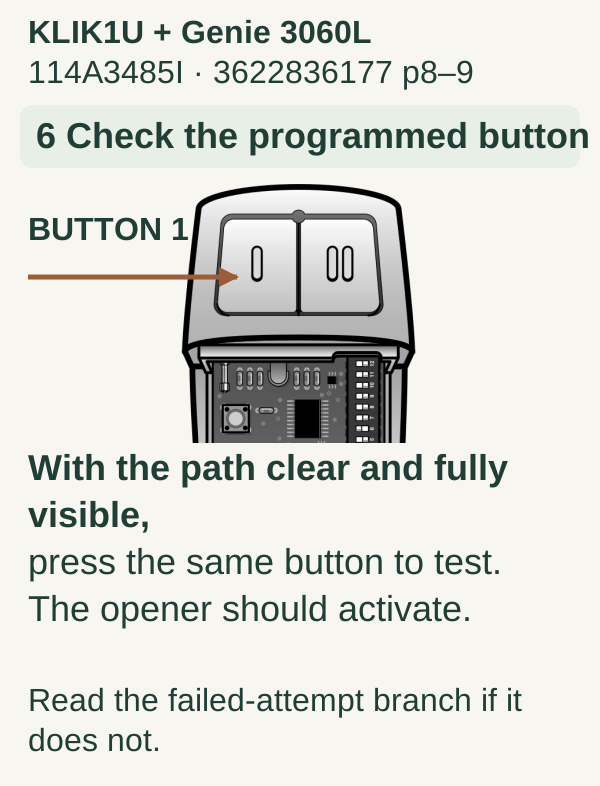
With the path clear and fully visible, press the same programmed button to test. The opener should activate. If it does not, stop and follow the failed-attempt guidance rather than substituting another model’s recipe.
4For other supported openers, keep the stages together
Use your own manual's chart to choose the radio-system entry and its required count. Follow its stated opener-learning step and save/exit action in order. If a dedicated brand exception is listed, read that exception before beginning.
A useful preparation note has four fields: remote model, opener/receiver model, selected chart entry, and confirmation signal. We recommend writing those fields before starting rather than trying to remember a number from a video.
If you lose count: allow the attempt to end and start again according to the manual. Extra presses are not a reliable way to recover a half-completed selection.
5Verify one button and one door at a time
Once setup ends, test from a safe viewing position. Check that the intended door moves and that an existing authorized control still operates. If you are assigning the second Clicker button to another door, finish and record the first assignment before repeating the correct procedure for the second opener.
Do not test from the street where you cannot see the door. Do not use successful movement as permission to ignore scraping, uneven travel, or a cable problem.
Troubleshooting and common mistakes
The remote LED never illuminates: inspect the correct battery and its installation. Do not assume the opener is at fault before confirming the handheld device has power.
The opener reacts once but the remote fails afterward: review the documented save or confirmation step. A reaction during learning is not always the final stored result.
No reaction after the stated presses: verify chart revision, opener generation, and any required special procedure. Repeatedly selecting nearby chart entries is not a compatibility test.
Opens but does not close: inspect the closing problem and safety-sensor status. Never bypass sensors or raise force to complete programming.
FAQ and key takeaways
Can I copy another remote's button presses? Only if the exact accessory, receiver system, and instructions match. Similar-looking transmitters can use different selection logic.
Does a universal remote need an internet connection? Follow the device's local or app-assisted setup route; do not confuse network setup with the traditional radio-learning procedure described here.
The safe shortcut is preparation: identify the pair, read its complete chart entry, and verify the saved assignment. Guessing a press count usually creates more work.
Explore guides · About this guide
Was this guide useful?
Your choice stays in this browser only. It is not sent to us.
Sources & manuals3
Manufacturer instructions and references for this guide. Match the document to your exact product.
- Manufacturer reference 1support.chamberlaingroup.com
- Manufacturer reference 2embed.widencdn.net
- Manufacturer reference 33ef5a44a-92ea-43d8-b1f7-c357f8ce6381.usrfiles.com