How to Program a Genie Garage Door Opener Remote
Quick answer
To program a Genie remote, identify the remote and opener first, then choose the correct generation's learning procedure. For a compatible G3T-R or G3T-BX, Genie documents separate starting steps for newer PROGRAM-button openers and many 1995–2011 LEARN CODE openers. The same remote can therefore require a different first step at a different garage.
We recommend reading the opener controls before pressing them. A rectangular PROGRAM/SET arrangement and an older LEARN CODE button should not be treated as identical.
Gather the details before starting
You need the opener model, remote model, working battery, matching instructions, and safe access to the programming controls. Allow roughly 15–25 minutes including identification and a final test. Use a stable stepladder if necessary, never the roof of a vehicle or a stack of storage boxes.
Only program authorized equipment. Keep the doorway clear and prevent anyone else from using its controls while you are pairing. The door may move during the procedure. Do not continue if it is crooked, damaged, or has a loose cable; a remote setup cannot make a mechanical fault safe.
1Confirm which Genie remote you have
Genie's accessory library separates G3T, G1T, GM3T Master, universal remotes, and several older families. Their names are not interchangeable. A three-button case alone does not identify its electronics.
Read the complete label. If you have a universal accessory or a GM3T, choose that model's instructions rather than the G3T example below. If an external receiver has been added to the opener, identify the receiver too.
2Choose the correct G3T starting branch
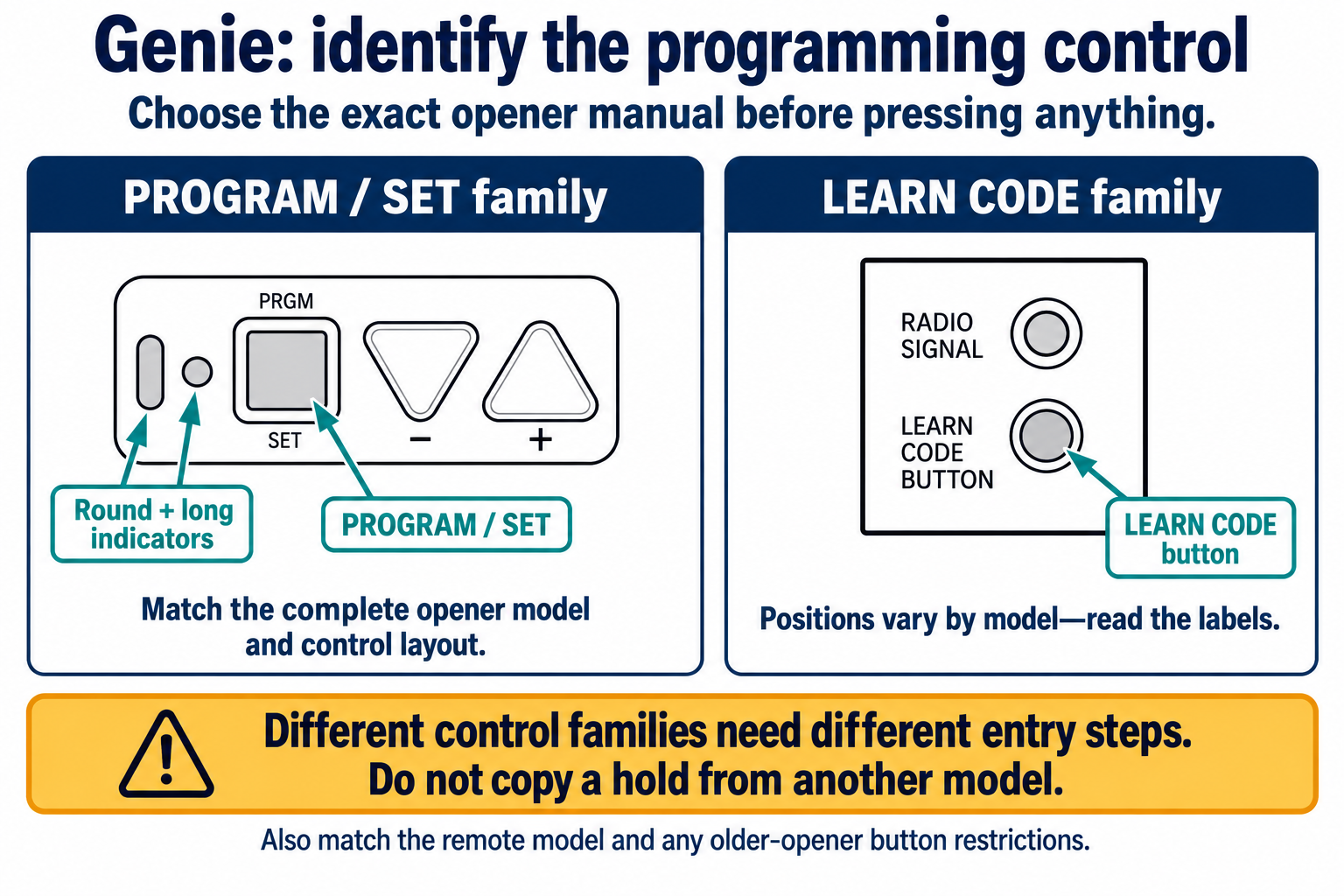
Identify the Genie control family
Identify the full opener and remote models before choosing a pairing procedure. Control positions and button restrictions vary by model.
Scroll sideways for detail, or open the full-size diagram. The complete instructions are written below.
Open full-size diagram and zoom (new tab)
- The two drawings are control-layout examples from Genie’s current courtesy instructions—not a claim that every Genie has those positions.
- The illustrated PROGRAM/SET pad has separate round and long indicators and plus/minus controls. The other example has a labeled LEARN CODE button and radio indicator.
- Read the actual labels: orientation varies. In particular, the 3060L control pair shown in article 06 is reversed relative to this courtesy example.
- Match the full opener and remote models, then follow the applicable entry and pairing instructions. Do not transfer a hold time, press count or older-opener button restriction across models.
Manufacturer reference 1
For a compatible G3T-R/G3T-BX, choose the matching control branch:
- Newer matching PROGRAM layout: hold PROGRAM until the round LED turns blue; release. Expect that LED off and the long LED flashing purple.
- Matching 1995–2011 LEARN CODE layout: press/release LEARN CODE; expect a blinking red LED.
If the expected indicator does not appear, do not substitute another button combination. Recheck the manual and model. In particular, do not move on to travel-limit programming merely because the opener also has arrow controls.
3Teach the selected G3T button
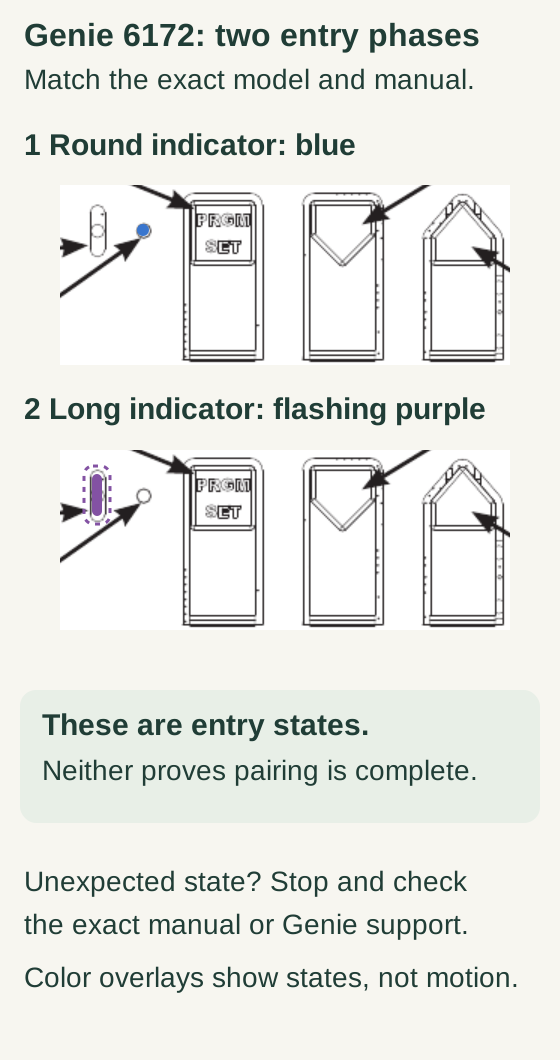
Scroll within the image if needed, or open the full-size view. The key details are also written below.
For the named Genie 6172 manual example, the first entry phase uses the round blue indicator; the programming phase uses the long flashing-purple indicator. The color overlays explain states, not live motion.
Neither state proves pairing is complete. Match the exact opener, remote and manual. If the observed state differs, stop and check the manual or Genie support rather than guessing. This diagram adds no press sequence or timeout rule.
Remove any battery tab. Stand at least five feet away. Within approximately 30 seconds, slowly press/release the chosen button twice; expect opener LEDs to flash and go out. A third press tests movement. Select the remote button using the exact opener and G3T manual revision. Genie’s linked G3T sheet contains different upper-button year ranges (1995–1997 and 1995–1999); do not use the year alone to resolve that discrepancy. Confirm the applicable branch with Genie before proceeding if the documents disagree.
Read these steps before beginning so you are not climbing down while trying to read a phone. If the window expires, let the attempt end and restart the correct branch. Keep a deliberate pace instead of clicking repeatedly without watching the indicators.
Genie 6172: pair an additional compatible G3T remote
- Use only with Genie 6172 and a compatible G3T remote, not a different Genie family.
- The remote must be powered. Remove its shipping battery tab if present. Supplied remotes may already be programmed; this series is for an additional or reprogrammed remote.
- Keep a sound door and its full travel path clear and visible. Read every step before starting.
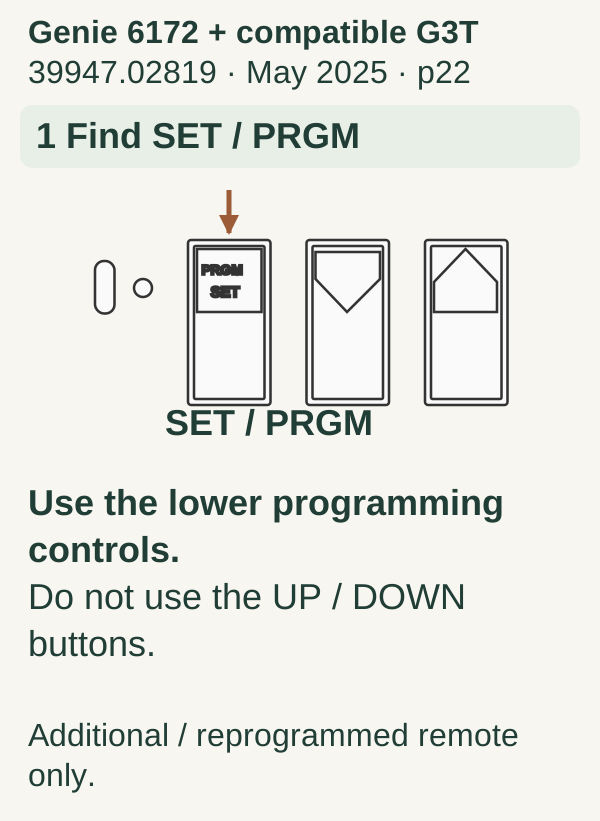
Scroll within the image if needed, or open the full-size view. The key details are also written below.
Use only the named Genie 6172 and a compatible G3T. Locate SET/PRGM in the lower programming-control group, not the UP/DOWN travel buttons.
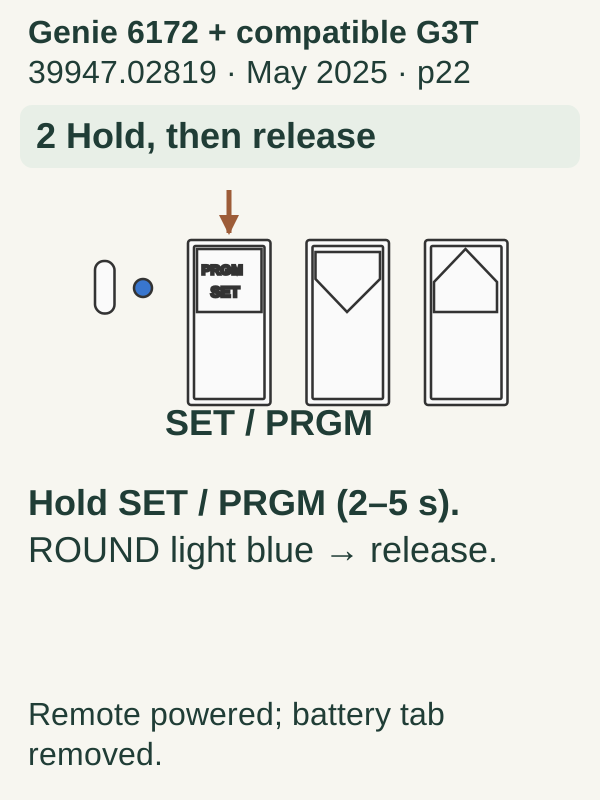
Scroll within the image if needed, or open the full-size view. The key details are also written below.
With the remote powered and any shipping battery tab removed, hold SET/PRGM for 2–5 seconds. Release when the round indicator turns blue.
Scroll within the image if needed, or open the full-size view. The key details are also written below.
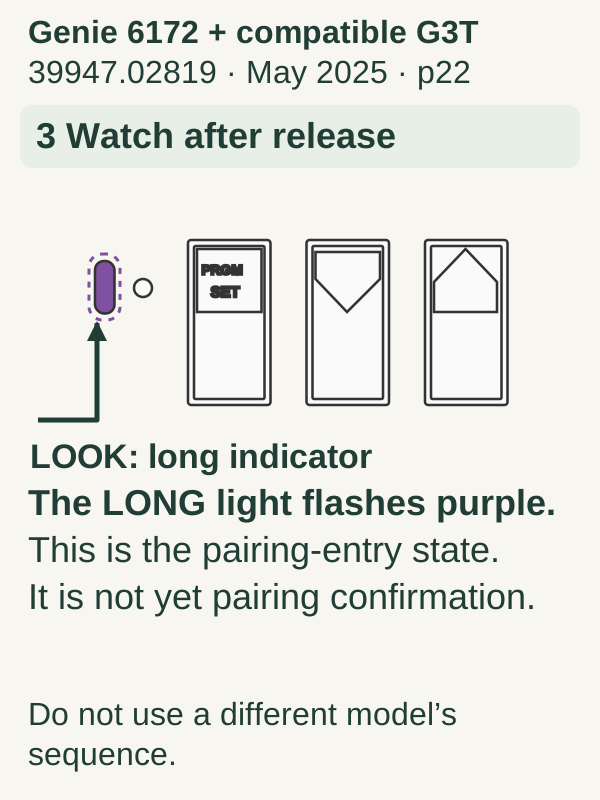
After release, watch for the long indicator to flash purple. This is the pairing-entry state, not completed pairing. Do not substitute another model’s sequence.
Scroll within the image if needed, or open the full-size view. The key details are also written below.
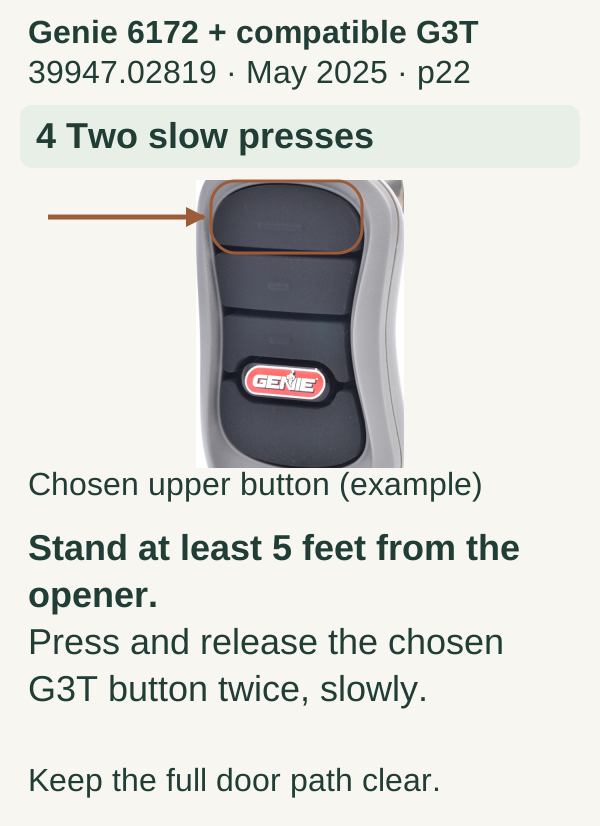
Stand at least 5 feet from the opener. Slowly press and release the same chosen G3T button twice. The upper button is selected in this example. Keep the full door path clear.
Scroll within the image if needed, or open the full-size view. The key details are also written below.
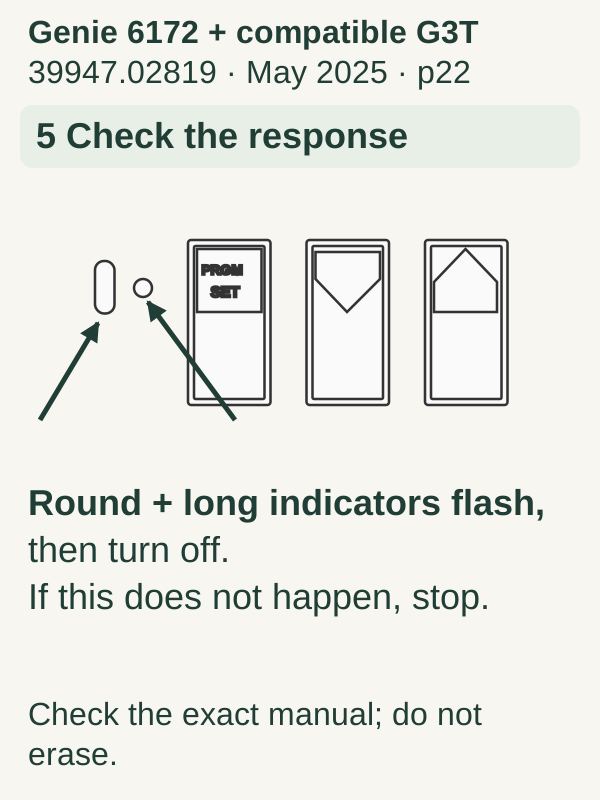
Watch both the round and long opener indicators flash, then turn off. If this response does not occur, stop and check the exact manual; do not erase memory.
Scroll within the image if needed, or open the full-size view. The key details are also written below.
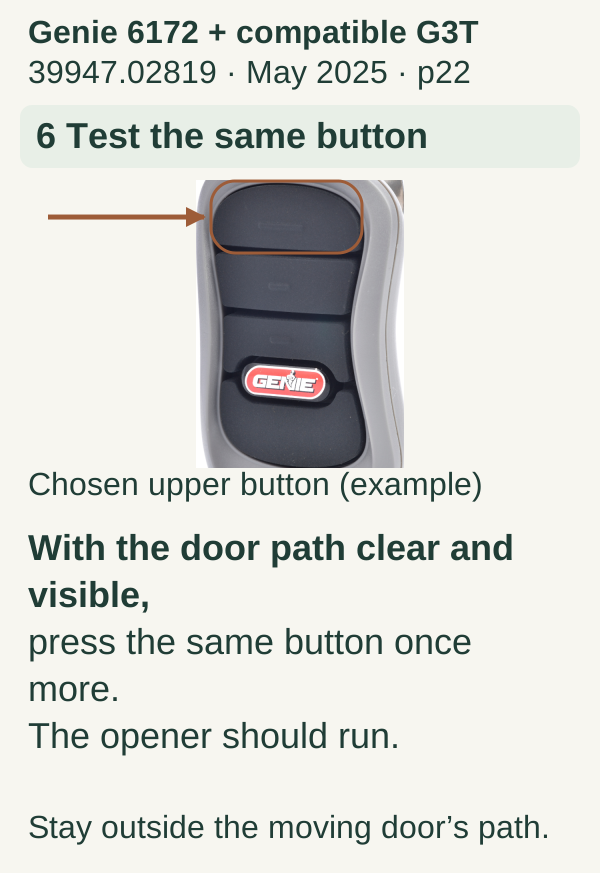
With the full door path clear and visible, press the same selected button once more. The opener should run. Stay outside the moving door’s path.
4Verify the door and household access
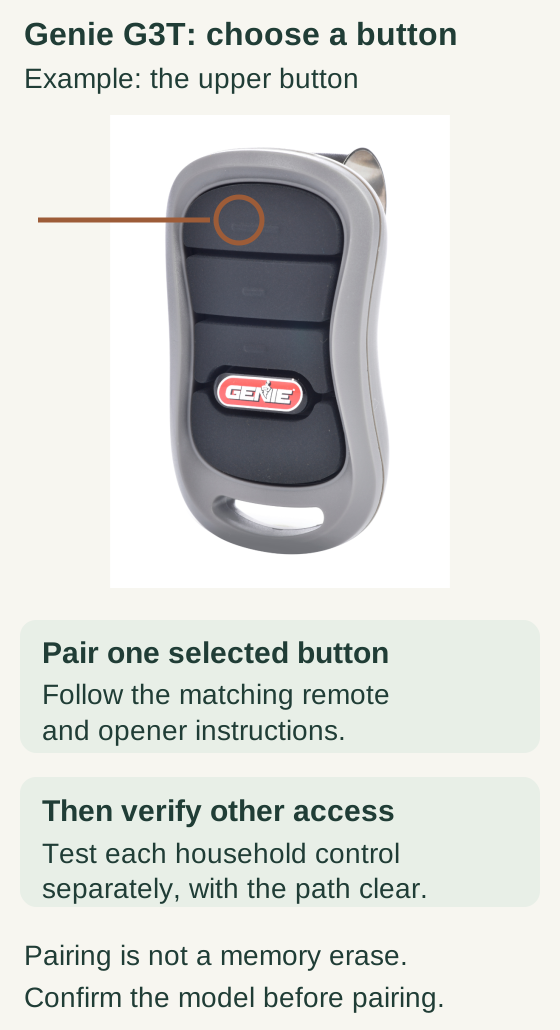
Scroll within the image if needed, or open the full-size view. The key details are also written below.
The upper button on this Genie G3T is the selected example. Pair one selected button using the matching remote and opener instructions; this is not an erase-all procedure.
Then test each other authorized household control separately with the doorway clear. The picture does not supply a pairing cadence or guarantee that existing access is retained.
Once pairing is confirmed, test from a position with a full view of the doorway. Confirm the button operates the intended door and that movement is normal. Then check an existing remote that should still work.
With two or three doors, program and test one button at a time. We recommend writing a private button map before moving to the next door. That small habit helps prevent the wrong door opening later when someone uses a familiar-looking remote.
If the old controls unexpectedly stop responding, pause. Adding a remote and clearing the opener's remote memory are different operations. Do not repeat a longer button hold in an attempt to restore them.
When the Genie remote will not program
No light on the remote: check the isolation tab and battery installation. If the case is damaged or the contacts are corroded, stop forcing the housing apart and address the accessory problem.
The opener's indicator never reaches the stated pattern: confirm the generation and button location. Indicator colors from a different Genie model are not a substitute for the matching instructions.
The opener confirms but the door will not close: investigate the closing condition and Safe-T-Beam indicators. Do not block, relocate out of service, or bypass the safety system to finish a remote test.
The remote works intermittently: compare other controls and note whether the failure depends on location. Reprogramming repeatedly can obscure a battery or interference issue.
Common mistakes
Do not use the Genie brand name as the entire compatibility check. Do not clear all remote memory before trying an ordinary addition. Avoid rushing the remote presses: the confirmation pattern is more useful than how quickly you finish.
Also distinguish the powerhead's programming from a connected Aladdin Connect setup. If your issue is limited to an app or changed network, identify the connected controller before changing radio access.
FAQ and key takeaways
Does a replacement remote remove a lost one? Adding another authorized transmitter does not itself establish that an old transmitter has been revoked. Use the correct memory-management procedure if removal is required.
Can I use these steps for every Genie? No. They are a G3T example with explicit control-generation gates. Other remotes and receivers have their own procedures.
Match both model numbers, wait for the correct indicator, and test one assigned button at a time. We recommend keeping the model record with your household maintenance notes so the next setup starts with facts rather than guesswork.
Explore guides · About this guide
Was this guide useful?
Your choice stays in this browser only. It is not sent to us.
Sources & manuals1
Manufacturer instructions and references for this guide. Match the document to your exact product.
- Manufacturer reference 1075954f1-c871-4f8c-ab04-4a6abd87f681.usrfiles.com