How to Reset a Chamberlain Garage Door Opener Safely
Quick answer
Reset a Chamberlain opener only after identifying the function you need to change. A power restart, remote-memory erase, Wi-Fi-settings clear, and factory reset are different operations. If remotes work and only myQ is offline, begin with network troubleshooting, not radio erasure.
We recommend preserving working access while fixing the failed part. Clearing every setting may turn one connectivity problem into several new programming tasks.
What you need
Record the opener model and symptom. Have the applicable instructions, a safe alternate entrance, and the authorized Wi-Fi name and password if reconnecting the app. If deliberately removing radio access, collect the remotes and pairing instructions first.
Allow 15–30 minutes for a focused diagnosis or network reconnection attempt. A full reconfiguration can take longer. Keep credentials private and do not post photos showing account information or PINs.
Clear the door area before any operation. If there is a broken spring, loose cable, crooked door, burning smell, or damaged power wiring, stop. No control reset is an appropriate way to work around those conditions.
1Build a quick symptom map
Try only safe, ordinary controls and note the result:
| What still works? | Useful next direction |
|---|---|
| Wall control and handheld remote, but not app | Network/device/account diagnosis |
| Wall control, but one remote fails | That remote's battery and pairing |
| All controls trigger movement but door reverses | Closing/door safety diagnosis |
| Nothing responds and no status lights are visible | Power and opener diagnosis |
| Everything works but a remote is missing | Deliberate access removal |
2Do not confuse a restart with an erase
A restart is a troubleshooting action directed at electronics. It is not evidence that a missing remote or old keypad code has been revoked. Use the opener's documented power procedure if the relevant troubleshooting calls for it.
Remember that backup-equipped hardware can remain energized after the mains supply is removed. Only follow the user-accessible battery instructions for your model; do not remove an electrical enclosure or disconnect unknown wiring.
After power is restored, check the original symptom once. If it returns, record the indicator state and continue the correct diagnostic branch. Repeated restarts without a new observation seldom clarify which layer has failed.
3Wi-Fi example: built-in myQ opener with the documented adjustment control
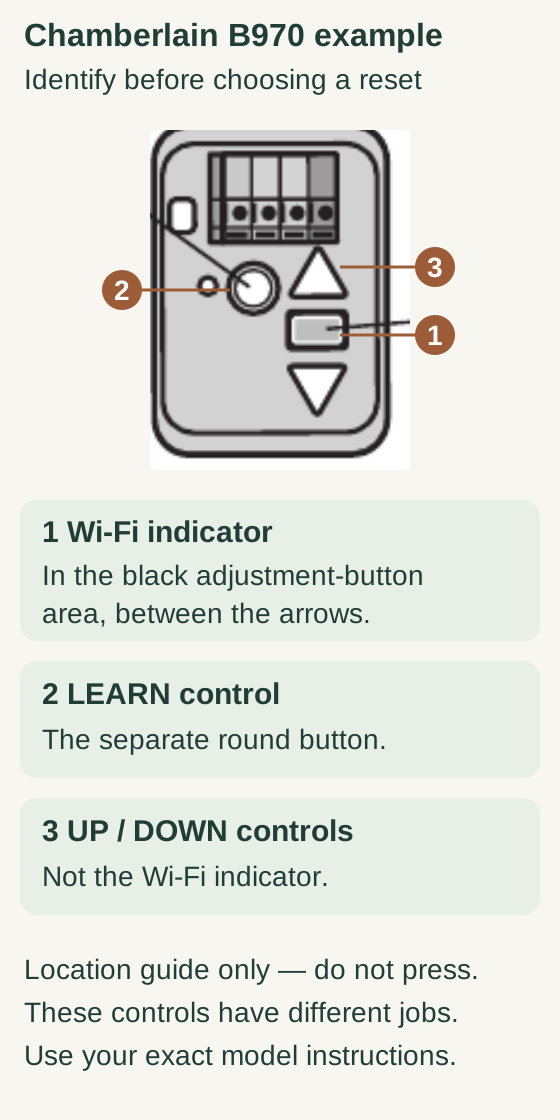
Scroll within the image if needed, or open the full-size view. The key details are also written below.
On this B970 example, callout 1 identifies the Wi-Fi indicator in the black adjustment-button area between the arrows. Callout 2 identifies the separate round LEARN button. Callout 3 identifies the UP/DOWN controls, not the Wi-Fi indicator.
This is a location guide: do not press controls to identify them. The controls have different jobs; use your exact model instructions. The picture supplies no hold duration or reset sequence.
Built-in myQ: use the observed Wi-Fi state
This state map covers the manufacturer’s built-in Wi-Fi opener guidance. A separate hub, camera or unidentified control layout needs its own instructions.
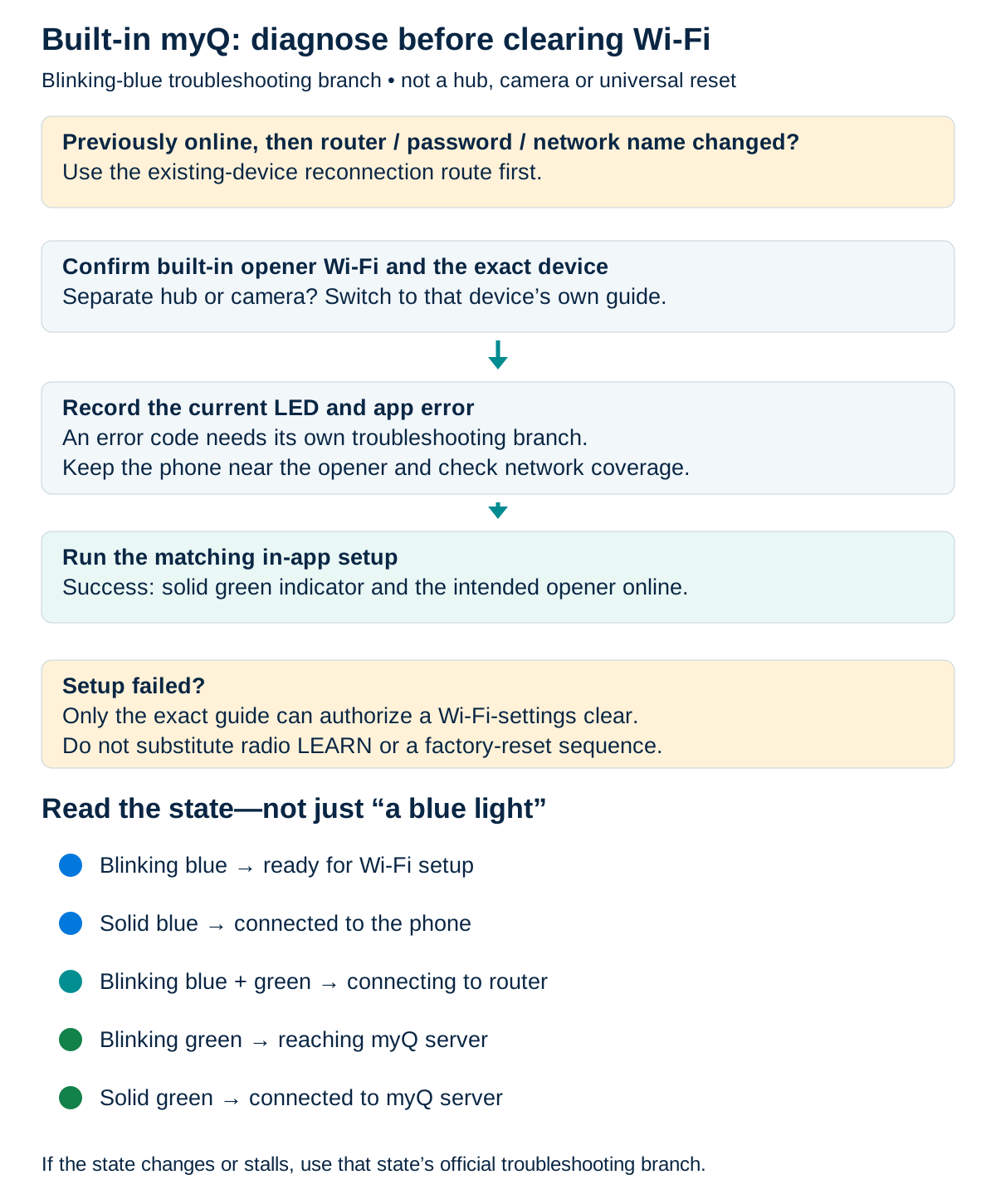
Scroll sideways for detail, or open the full-size diagram. The complete instructions are written below.
Open full-size diagram and zoom (new tab)
- This state map follows the official built-in Wi-Fi opener blinking-blue guide, not a separate hub, camera or unidentified control layout.
- If the device previously worked and a router or credential changed, use the existing-device reconnection route first. Record any app error and follow its specific help.
- For the matching setup branch, keep the phone near the opener and follow the current app’s instructions. A solid green indicator and the correct opener online are the expected result.
- If setup fails, use the exact device guide to determine whether clearing Wi-Fi settings is appropriate. This diagram does not authorize a generic black-button or LEARN hold.
- Covered states: blinking blue—ready for setup; solid blue—connected to phone; blinking blue/green—connecting to router; blinking green—reaching myQ server; solid green—connected to myQ server.
Manufacturer reference 1
Chamberlain's built-in Wi-Fi opener, blinking-blue troubleshooting route applies to matching hardware with the black adjustment button between its arrows. It does not apply to a separate Smart Garage Hub, a camera, or every newer control layout.
For a device previously online after a router change, use the existing-device reconnection route first. For the matching setup-failure case, follow the app setup process. If it fails and the guide directs a Wi-Fi clear, hold the documented black adjustment control until three beeps occur; its LED should go out. Then repeat that opener's app setup.
Keep this sequence tied to that identified hardware and troubleshooting state. Do not replace the adjustment control with LEARN or repeat holds from an unrelated factory-reset instruction.
B970: clear Wi-Fi settings only after failed setup
- Use this built-in Wi-Fi B970 branch only after the documented in-app setup attempt fails. It is not a universal first reset.
- If the opener was previously online and the router, password or network name changed, use the existing-device reconnection route first. Keep all troubleshooting gates above this series.
- Use stable, safe access. Do not hold the round LEARN control: that hold erases remote access.
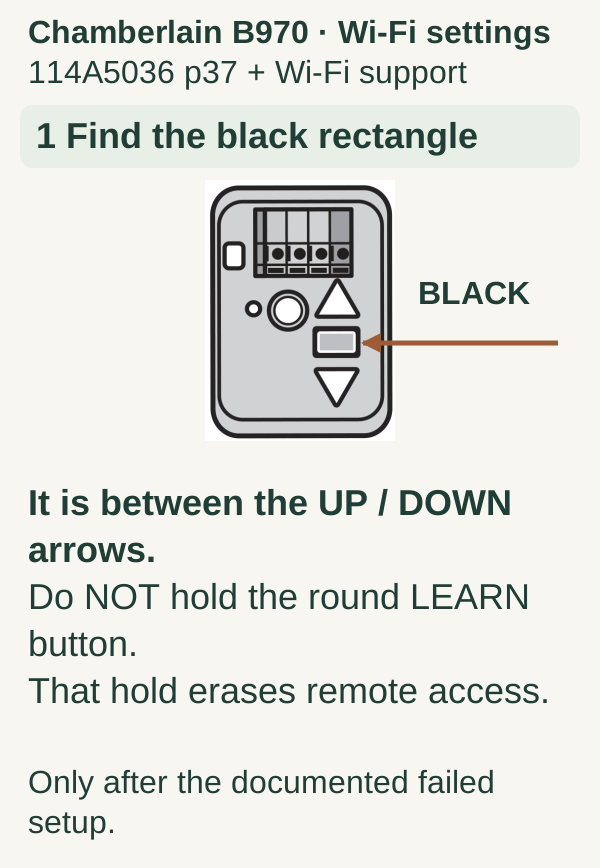
Scroll within the image if needed, or open the full-size view. The key details are also written below.
Only after the documented failed-setup conditions above, locate the B970 black adjustment rectangle between the UP and DOWN buttons. Do not hold the separate round LEARN button; that hold erases remote access.
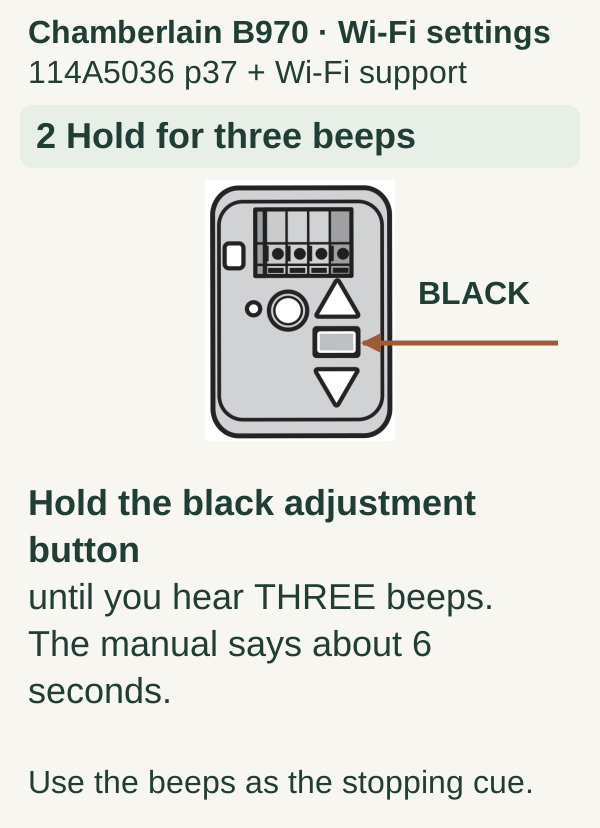
Scroll within the image if needed, or open the full-size view. The key details are also written below.
Hold the black adjustment button until three beeps are heard. The B970 manual gives approximately six seconds; use the three beeps as the stopping cue.
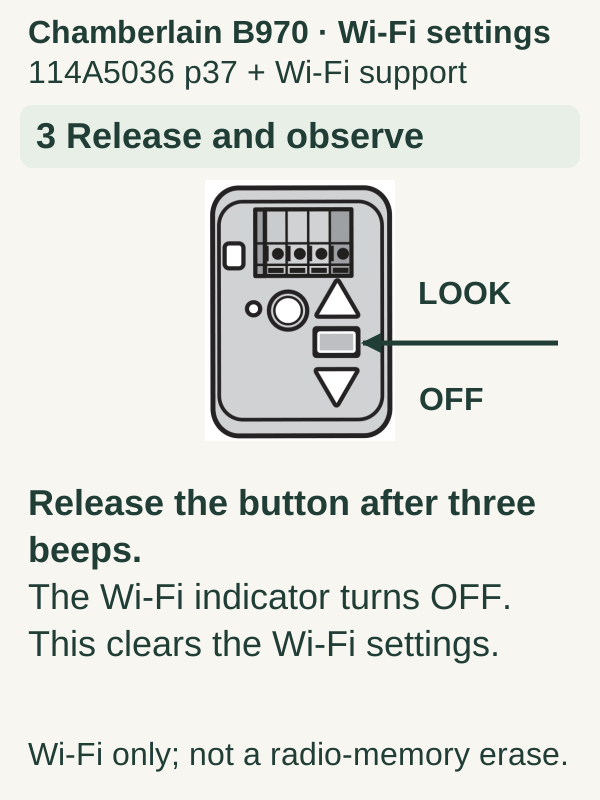
Scroll within the image if needed, or open the full-size view. The key details are also written below.
Release after the three beeps. The Wi-Fi indicator turns off and the Wi-Fi settings are cleared. The external OFF label is an observation callout, not a device control. This is not a radio-memory erase.
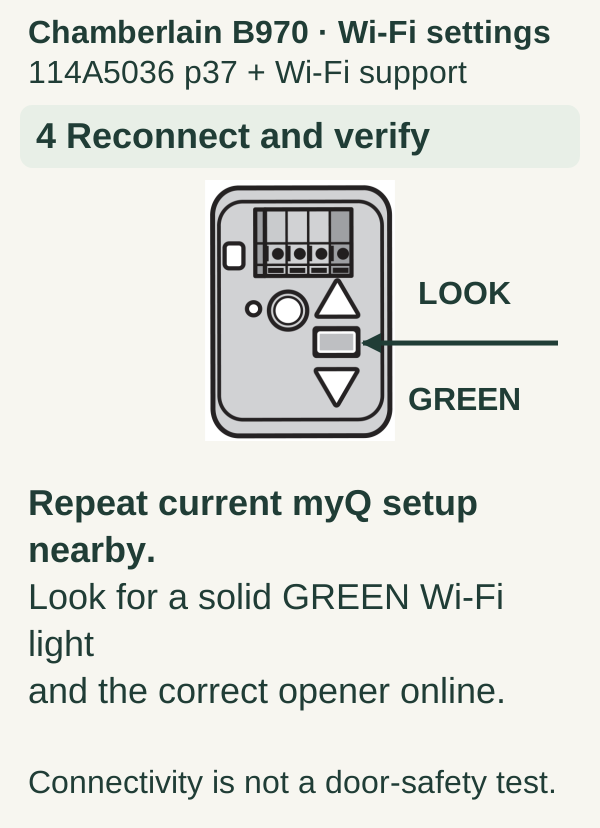
Scroll within the image if needed, or open the full-size view. The key details are also written below.
Repeat the current myQ setup nearby. Check for a solid green Wi-Fi indicator and the correct opener online. Connectivity does not establish a successful door-safety test.
4If you need to remove a remote, use the radio-memory procedure
Locate the memory-erasure instructions for the actual opener or receiver. Read whether the operation removes a group of remote and keypad codes or supports a narrower selection. Prepare to re-enroll intended controls before you begin.
After the documented erase, verify the intended old radio access is gone before restoring that device, where safe. Then add authorized devices one at a time and test each. Include vehicle transmitters in your access inventory.
Do not assume a successful radio erase signs out app users or transfers ownership. Network credentials, radio devices, and account access should each be checked according to the change you intended.
5Treat factory reset as a separate, deliberate decision
A factory reset should have a defined purpose and a model-matched restoration plan. The current Chamberlain factory-reset guidance describes consequences that can include deleting paired controls and connected configuration. Read the complete applicable branch before touching its controls.
We recommend writing a small checklist: which remotes must be paired, whether the keypad needs setup, which vehicles require attention, and which account should legitimately own the device afterward. Do not perform a reset to get around an unresolved ownership message.
Troubleshooting and common mistakes
A black-button hold starts travel setup instead of the expected Wi-Fi result. Stop and recheck the exact model, action, and instructions. Do not continue into movement adjustments merely to complete a reset.
The app is online but the door will not close. Confirm the physical door and safety-system state. Internet connectivity does not establish safe mechanical operation.
The remote now fails too. Determine whether a broader erase occurred. Avoid making further changes until you know which settings were removed.
The device is still offline after reconnecting. Note whether the problem is joining Wi-Fi, reaching the internet service, or appearing in the authorized account. These are different failure points.
Common questions
Do I need a factory reset after changing my router? Start with the existing device's Wi-Fi update flow. A network change does not by itself justify wiping every accessory.
Will resetting fix an intermittent door? Only if the documented reset addresses the identified cause. Mechanical faults, damaged wiring, and weak transmitter batteries need their own diagnosis.
Key takeaways
Preserve what works, name the reset type, and use its exact hardware branch. Verify the original problem afterward, and stop if the procedure leads into unintended travel, force, or ownership changes.
Explore guides · About this guide
Was this guide useful?
Your choice stays in this browser only. It is not sent to us.
Sources & manuals1
Manufacturer instructions and references for this guide. Match the document to your exact product.
- Manufacturer reference 1support.chamberlaingroup.com