How to Reset a Genie Garage Door Opener: Memory, Power, or App?

Quick answer
To reset a Genie opener, first decide whether you mean restarting power, clearing radio-device memory, or fixing an Aladdin Connect connection. These are different jobs. Clearing remotes is not a universal factory reset, and it is not a mechanical repair.
We recommend using radio-memory erasure only when you intend to remove access or when the matching manufacturer troubleshooting specifically calls for it. For a single weak remote, start with its battery and response instead.
Prepare before removing any access
Record the powerhead model, remote/keypad models, and any connected controller. Gather the accessories you plan to keep and locate their pairing instructions. Include car transmitters in the list, not just handheld remotes.
Allow 20–40 minutes for an intentional erase and restoration of a few controls. Larger households or multiple garage doors can take longer. Keep a working authorized alternative entrance available and tell affected users before their transmitters stop working.
Do not test a door with a broken spring, hanging cable, damaged track, or uneven movement. Keep people away and have the mechanical fault assessed. No remote-memory change makes such a door safe.
1Identify the problem layer
Ask which statement describes the problem:
- A remote was lost and should no longer operate the door.
- One transmitter fails but the wall console works.
- Aladdin Connect is offline while ordinary controls work.
- The opener receives commands but the door stops or reverses.
- The opener has no apparent power or status indication.
Each statement leads to a different investigation. Erasing radio devices may address the first; it does not automatically address the others.
2Know what Genie's remote-memory clear changes
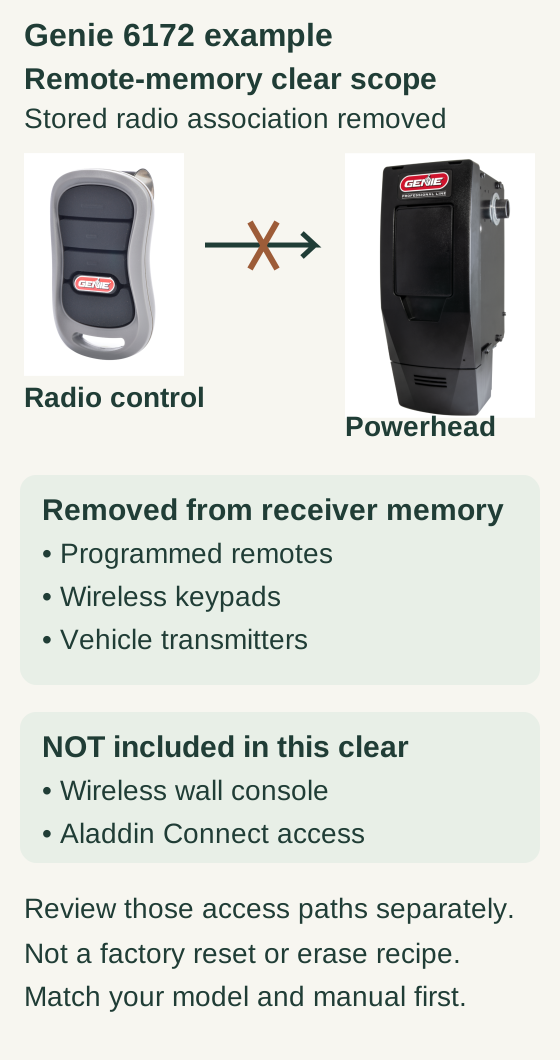
Scroll within the image if needed, or open the full-size view. The key details are also written below.
For the Genie 6172 example covered by the wall-mount manual, this remote-memory clear removes programmed remotes, wireless keypads and vehicle transmitters from receiver memory. The crossed arrow means a stored association is removed, not that the remote transmits an erase command.
Wireless wall-console and Aladdin Connect access are not included in this particular clear; review them separately. This is not a factory reset, an erase sequence, or a rule for every Genie model.
Genie's published erase guidance says the relevant powerhead operation removes learned handheld remotes, wireless keypads, and vehicle transmitters. It distinguishes those from Aladdin Connect and its wireless wall console.
That boundary matters when changing household access. If the goal includes removing someone's phone access, a radio erase alone is not evidence that the goal was achieved. Review the connected account through its authorized management process as a separate step.
Likewise, an ordinary working wall console after radio erasure is not proof that the erase failed. Different controls can use different access paths.
3Resolve the exact model and erase instructions
Separate radio access from app and console access
Before erasing anything, resolve the exact opener and manual revision. The manufacturer’s courtesy guide contains conflicting release indications, so no operating sequence is supplied here.
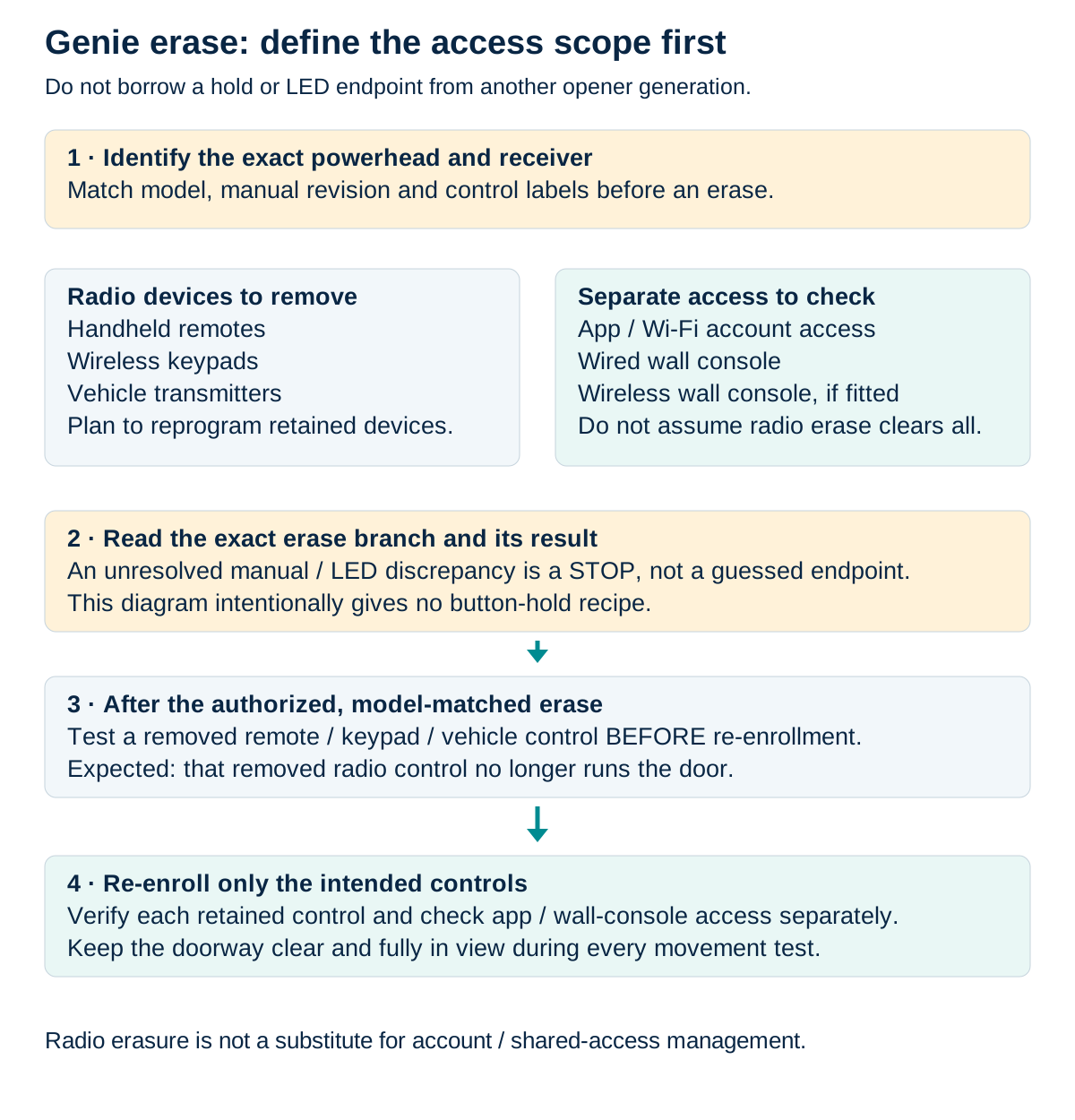
Scroll sideways for detail, or open the full-size diagram. The complete instructions are written below.
Open full-size diagram and zoom (new tab)
- Identify the exact powerhead, receiver, control labels and manual revision before any erase. This diagram supplies no unresolved hold or LED endpoint.
- List the radio devices to remove and those to restore: remotes, keypads and vehicle transmitters. Separately check app/account access, wired console and any wireless wall console.
- Genie’s current courtesy guide distinguishes RF devices from Wi-Fi activations and gives a separate wireless-wall-console route for supported controls. Do not assume one erase removes every form of access.
- After the authorized model-matched erase, test removed controls BEFORE re-enrollment. Expected result: removed radio controls no longer operate the door.
- Re-enroll only intended controls; verify each and check app/console access separately. Keep the door path clear and fully visible during any movement test.
Manufacturer reference 1
Match the full powerhead model, control labels and manual revision before selecting an erase branch. Resolve contradictory release indications with Genie support before operating the controls.
- Identify the exact opener model and the revision of its own manual before choosing an erase procedure.
- Confirm the purpose, affected memory, control sequence and release indication with that manual or Genie support. Published courtesy instructions contain conflicting release indications; do not start while the endpoint is unresolved.
- Only after the confirmed model-specific procedure is completed, safely test a previously working radio transmitter before re-enrollment.
- Restore intended devices through their own pairing instructions and manage connected-account access separately.
Older LEARN CODE units and newer PROGRAM controls can use different branches. Do not transfer steps between them or experiment with arrow buttons if the opener enters travel-setting behavior.
Older Genie 3060L only: intentionally erase learned remote controls
This older LEARN CODE example uses the 3060L manual, 3622836177, pages 8–9. It is separate from the 6172 example above. It clears learned remote-control codes at this powerhead, not a universal factory reset or an app-account reset. Do not use it merely because one remote has a weak battery.
Before removing access, identify the exact 3060L and its documented control, record which controls must be restored, tell affected users and keep an authorized alternative entrance available. Use safe, stable access. Only test a mechanically sound door with the entire path clear and visible; do not cycle a door with a spring, cable or track fault.
- Use the upper LEARN CODE button, not the indicator below it. The lower light is an observation point, not a press target. Do not substitute a PROGRAM or travel-control sequence from another model.
- Use the manual’s erase endpoint. Hold the powerhead LEARN button for 10 seconds or until the Learn indicator goes out, then release. If the response differs, stop and resolve the exact model/manual with Genie; do not extend the hold or experiment with other buttons.
- Check removal before restoring access. Safely test an available, previously working radio control before re-enrolling any devices. It should no longer operate the door. If it still operates, stop and verify the correct receiver and model-specific instructions rather than assuming erasure succeeded.
- Restore only intended controls. Use each compatible device’s exact pairing procedure and verify it separately with the path clear and in view. Review app or separately managed access independently; this radio erase is not evidence that those access paths were removed.
Reference: Genie 2060/3060 owner’s manual, pages 8–9.
Genie 3060L radio-memory erase: the two control actions
- Use only the exact older Genie 3060L and manual 3622836177. This is a separate older-model example, not the 6172 procedure.
- Intentionally removing radio access affects learned remote controls. Record intended controls to restore, notify affected users and keep an authorized alternative entrance available. Do not erase merely because a remote battery is weak.
- Use safe, stable access. Test only a mechanically sound door with its entire path clear and visible; do not operate a door with a spring, cable or track fault.
- Follow the complete older 3060L procedure, including testing a previously working control before re-enrollment. If the response differs, stop and verify model/receiver instructions rather than extending the hold or guessing other buttons.
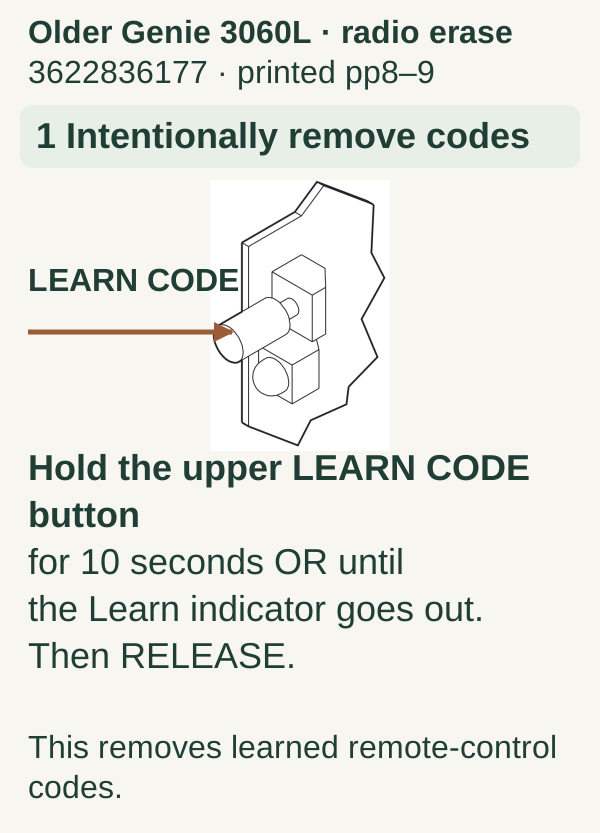
Scroll within the image if needed, or open the full-size view. The key details are also written below.
Older Genie 3060L · radio erase 3622836177 · printed pp8–9 1 Intentionally remove codes LEARN CODE Hold the upper LEARN CODE button for 10 seconds OR until the Learn indicator goes out. Then RELEASE. This removes learned remote-control codes.
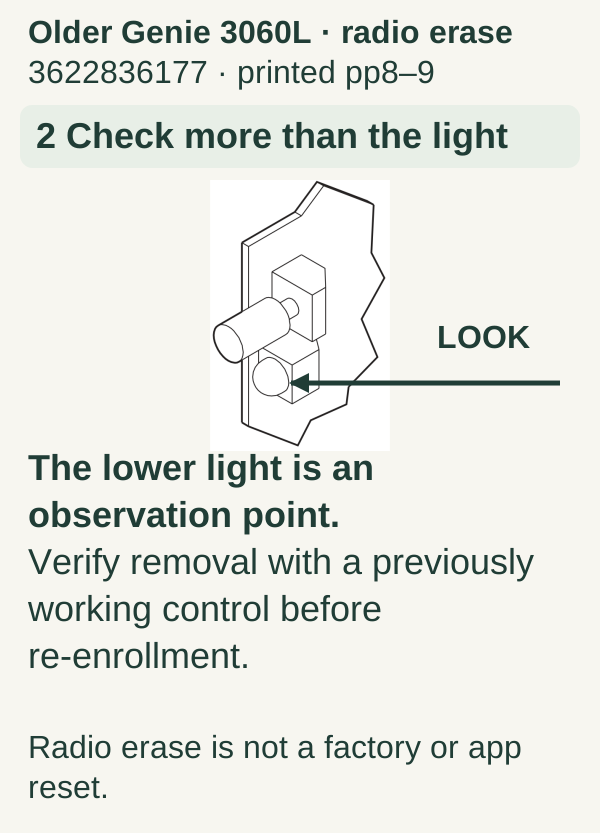
Scroll within the image if needed, or open the full-size view. The key details are also written below.
Older Genie 3060L · radio erase 3622836177 · printed pp8–9 2 Check more than the light LOOK The lower light is an observation point. Verify removal with a previously working control before re-enrollment. Radio erase is not a factory or app reset.
4Restore devices one at a time
Begin with one identified compatible remote. Follow its full pairing sequence, then verify its assigned button. Add the keypad next, followed by other remotes and vehicle systems as needed. Complete one opener before moving to a second garage door.
We recommend a written checklist with a line for each intended device and a tick only after a successful test. Keep PINs and passwords out of that checklist. If one device fails, you can then investigate that device without repeating the entire erase.
If a newly added device appears to displace another, record the exact models and sequence. Do not repeatedly enroll the same button without checking the receiver's documented capacity and programming guidance.
5Use power and connected-app troubleshooting separately
For a power-related symptom, follow the matching opener's diagnostic instructions before deciding that a reset is needed. Backup power can affect what stays energized. Do not open the mains enclosure or work on unknown wiring.
For Aladdin Connect, identify whether the connection is integrated into the opener or provided by an add-on controller. Use that device's network and account instructions. Do not use a remote-memory erase as a substitute for reconnecting the correct controller.
If an ownership or account-access issue appears, resolve it through the legitimate owner and manufacturer process. A reset should not be used to bypass another person's access controls.
Troubleshooting after the erase
A previously working radio transmitter still operates before re-enrollment: confirm the correct receiver and erase branch were used. A separately installed receiver can change where access is stored.
No intended device will pair: check that the opener is in the correct learning state and that the transmitter is compatible. Do not alter travel or force settings to fix pairing.
The remote opens but does not close: investigate Safe-T-Beam and the physical closing path. Never bypass the sensors to complete a reset test.
The app remains available: that can be consistent with the stated scope of radio erasure. Review app access separately if removal was intended.
Common questions and key takeaways
Should I erase memory after a battery change? Not merely because a battery was replaced. Test the original button and diagnose the accessory first.
Is the PROGRAM button a universal reset button? No. Its function depends on the model and sequence. A safe procedure begins with the correct branch, not an arbitrary long hold.
Identify the Genie generation, understand the scope of the erase, and verify removed and restored access. Keep radio devices, connected accounts, and door-travel adjustments separate.
Explore guides · About this guide
Was this guide useful?
Your choice stays in this browser only. It is not sent to us.
Sources & manuals2
Manufacturer instructions and references for this guide. Match the document to your exact product.
- Manufacturer reference 1075954f1-c871-4f8c-ab04-4a6abd87f681.usrfiles.com
- Genie 2060/3060 owner’s manual, pages 8–9www.geniecompany.com