How to Reset a LiftMaster Garage Door Opener: Pick the Correct Reset
Quick answer
A LiftMaster reset can mean several things. For an unresponsive accessory, diagnose that accessory first. To remove unwanted radio access, use the opener or compatible wall panel's documented memory-erasure procedure. For an offline app, use the network route. Do not treat every LEARN-button hold as the same reset.
We recommend separating the intended result from the button action: what should stop working, what should keep working, and what will need to be paired again?
Before you begin
Record the complete opener and wall-control models. Gather the remotes and keypad instructions you will need if you deliberately erase access. Include vehicles in the inventory; a built-in car button may need attention after a radio-memory change.
Allow 20–40 minutes for an access erase and re-enrollment of a small household's controls. More vehicles or missing accessory manuals can take longer. Keep an alternate entrance available and tell other authorized users before changing their access.
Do not operate a damaged or uneven door to test the reset. A broken spring, hanging cable, or binding door requires mechanical diagnosis. Do not raise force settings or alter travel limits as a generic reset step.
1Choose the LiftMaster branch that matches the symptom
One remote fails: compare a working control, check that transmitter's battery, and verify its pairing. Erasing every device is an unnecessarily broad first step.
A remote was lost: plan an authorized radio-memory change. Adding a replacement alone does not establish that the missing transmitter is disabled.
myQ is offline: identify built-in Wi-Fi versus a separate hub and examine the network error. Ordinary radio controls and app connectivity are different paths.
Door movement is abnormal: stop control experimentation and use the corresponding opening or closing diagnostic guide.
2Identify where radio access is managed
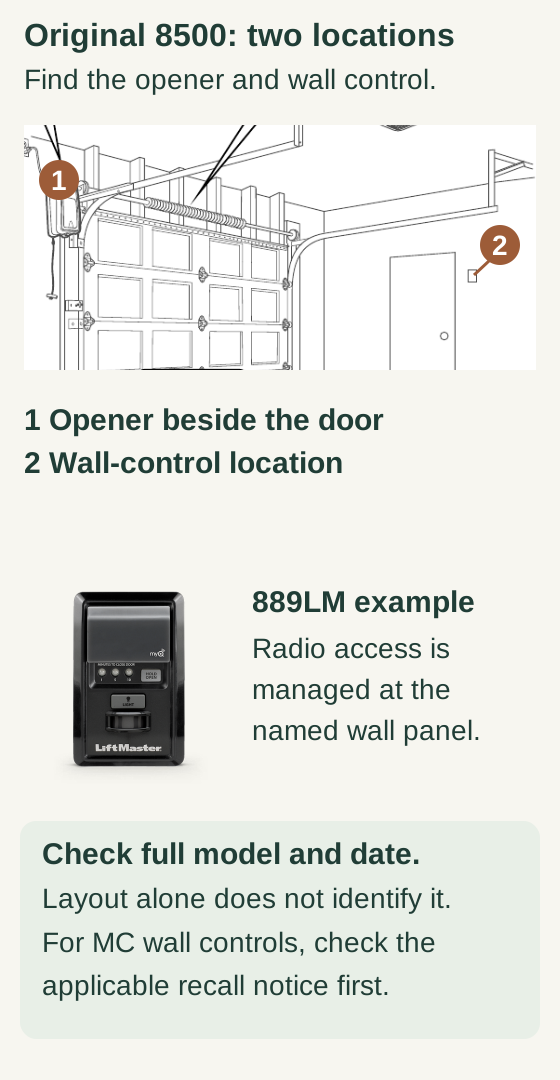
Scroll within the image if needed, or open the full-size view. The key details are also written below.
The original 8500 layout distinguishes the opener beside the door from the wall-control location near the entry. The overview marks a generic wall-control position; it does not identify the photographed model.
In the named 8500/889LM example, radio access is managed at the wall panel. Verify the full printed model and manufacture date, including any applicable MC recall notice. The separate wall-control front view does not certify its suffix or recall status, and this diagram is not an erase sequence.
LiftMaster installations do not all use the same programming location. The original 8500 is a useful example: with its documented 888LM/889LM wall control, remote learning is handled through the wall panel. The opener's other programming controls should not be substituted for it.
For a ceiling unit or an added receiver, use the actual model's memory instructions. Do not infer the correct location merely from the color of a nearby button or a photograph of a different opener.
If you cannot positively identify the control and the erasure consequence, pause. A failed remote is easier to diagnose before unrelated settings have been changed.
3Deliberate memory-erasure example: compatible myQ control panel
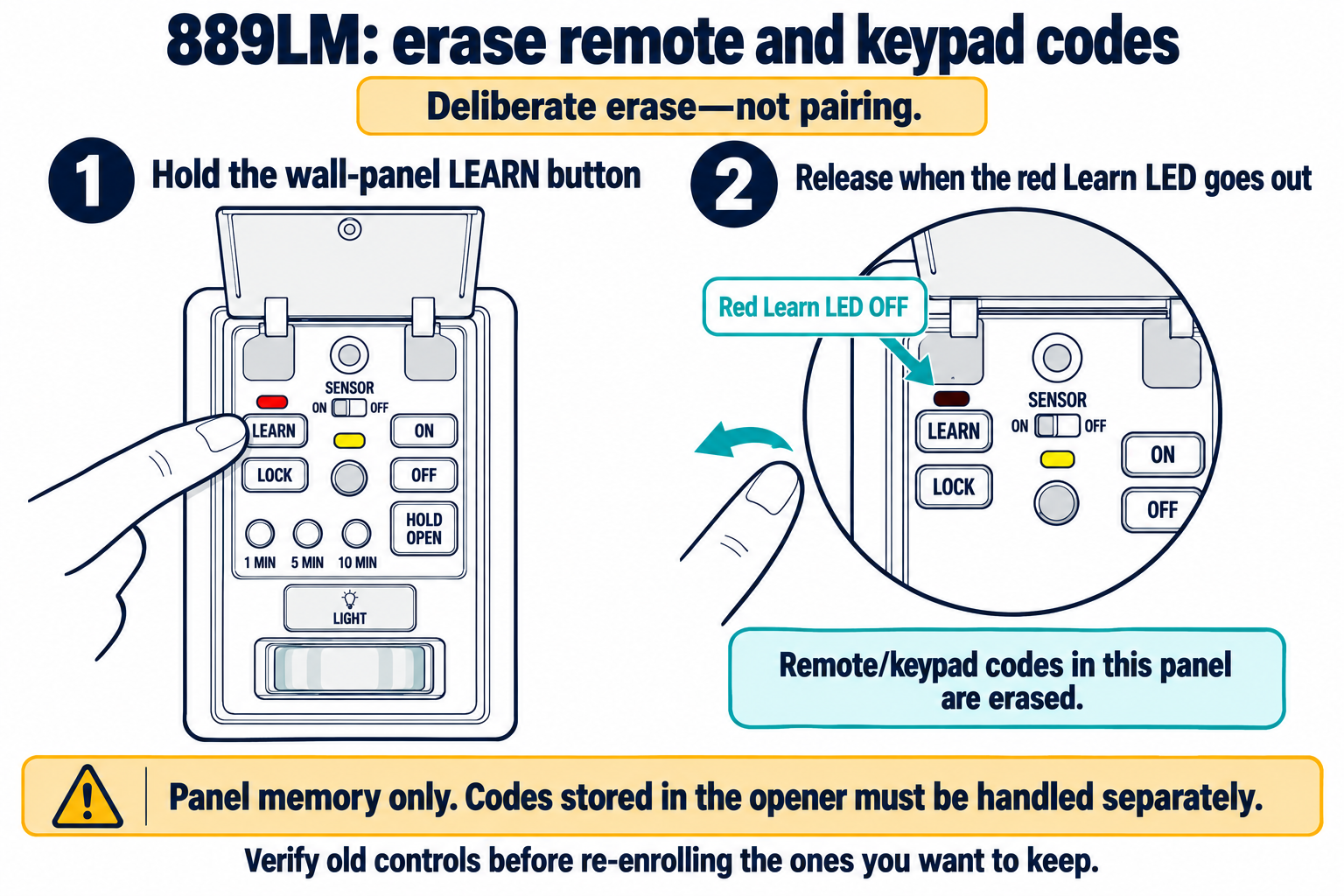
889LM: clear its stored remote and keypad codes
Deliberate access removal only: identify the 889LM and confirm your authority to clear its stored codes. This changes wall-panel memory; codes stored separately in the opener are not removed by this action.
Scroll sideways for detail, or open the full-size diagram. The complete instructions are written below.
Open full-size diagram and zoom (new tab)
- Use only for the identified 889LM panel and an authorized deliberate erase. This removes its stored remote and keypad codes.
- Raise the pushbar. Hold the left LEARN button until the red Learn LED above it goes out, then release. The manual calls this approximately 6 seconds; the illustrated checkpoint is the LED event, not a universal timer.
- Do not immediately repeat the hold: the manual’s second hold belongs to the broader all-device/myQ-accessory erase route, not this illustration.
- The 889LM manual warns that wall-panel erasure does not remove codes stored in the opener itself; handle any separate memory with its exact instructions.
- Before re-enrolling controls, verify removed access safely with the doorway clear and in view. Re-enroll only the controls you intend to keep.
Manufacturer instructions
Use this example only where your identified LiftMaster installation and panel manual specify the myQ control-panel LEARN memory-erasure route. Confirm it applies before proceeding.
- Make sure you have authorized access and the pairing instructions for controls you will restore.
- Hold the panel's LEARN control until its indicator goes out, then release.
- Before re-enrollment, safely check a control known to have been stored in this panel. A code stored separately in the opener may still work; identify and manage that memory through its own instructions.
- Re-enroll only the intended remotes and keypad using their matching procedures.
- Verify each restored device and the controls you intended to remove.
This is an access erase, not a generic reboot. Do not add repeated long holds borrowed from a factory-reset guide. Do not assume this single action changes myQ account ownership.
4Restore access in a controlled order
We recommend restoring one handheld remote first. Test its assigned button, then add the keypad, additional remotes, and vehicle transmitters as applicable. Keeping the sequence simple makes it easier to notice which device fails.
For a multi-door property, record which receiver and button each step concerns. Do not press a control for another door while the target opener is in learning mode. Finish one opener before moving to the next.
If a device will not pair, check its exact compatibility and procedure rather than erasing the opener again. An older accessory or a missed remote-preparation stage will not become correct after another wipe.
5Use a separate route for power or Wi-Fi troubleshooting
If manufacturer troubleshooting directs a power cycle, follow the exact model's procedure, including any user-serviceable backup power instructions. Do not assume pulling the mains plug removes all power, and do not open the mains enclosure.
For a previously working myQ device after a router change, use the existing-device Wi-Fi update flow. If the account reports another owner, resolve that through the authorized ownership process instead of trying increasingly broad resets.
We recommend leaving factory reset for a defined manufacturer-directed reason, with its consequences understood first. It can require substantially more restoration than a radio-access erase.
Troubleshooting after the change
- Old radio control still works before re-enrollment: confirm that you erased the correct receiver's memory and saw the stated confirmation.
- No remote will re-enroll: verify the control location and supported accessory generation.
- Wall control works but app does not: continue network/account diagnosis; do not repeat radio erasure.
- Door will not close: inspect the closing symptom and safety sensors. Resetting access does not make a failed safety system acceptable.
Common questions
Can I erase only one missing remote? That depends on the supported management features of the exact system. Do not promise selective removal from a generic LEARN-button procedure that clears a whole group.
Will unplugging remove the previous owner's access? Do not use power interruption as an access-revocation method. Plan the appropriate radio and account changes separately.
Why not provide one universal hold time? LiftMaster products, panels, and reset types differ. The intended operation and matching hardware determine the sequence.
Key takeaways
Choose the outcome first, identify the true access-management control, and restore intended devices one at a time. A successful LiftMaster reset is a verified change with known consequences, not simply an indicator going dark.
Explore guides · About this guide
Was this guide useful?
Your choice stays in this browser only. It is not sent to us.
Sources & manuals1
Manufacturer instructions and references for this guide. Match the document to your exact product.
- Manufacturer instructionsembed.widencdn.net