Program a Gate Remote or Keypad: Find the Right Procedure
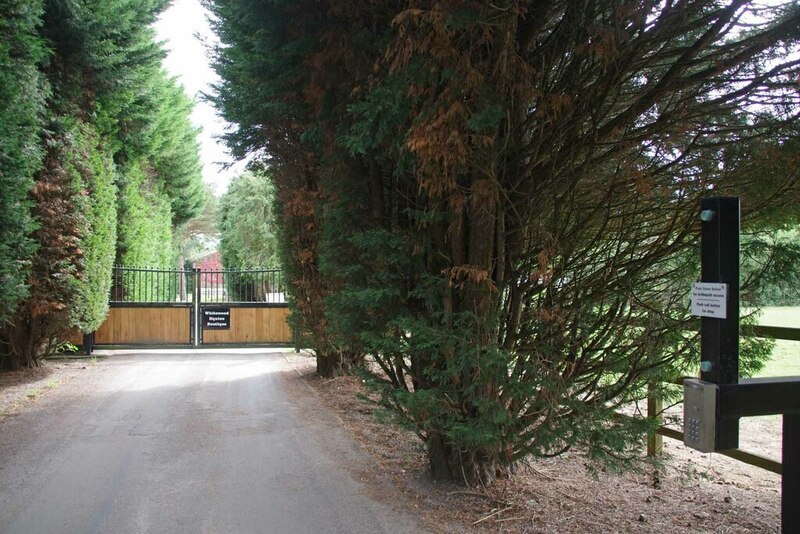
Programming starts with the receiving equipment
To program a gate remote or keypad, first identify the equipment that will receive and authorize its signal. That may be the radio integrated into the gate operator, a separate receiver, or a managed access-control system. The motor’s brand alone does not identify the correct enrollment instructions. A keypad is also not necessarily a wireless remote with number buttons.
This guide explains how to choose and prepare the correct procedure, not a universal sequence of button presses. Different devices use different radio protocols, memory rules and control functions. If you cannot identify the receiver or the current manual, stop before pressing Learn, Reset or any programming control.
Confirm authority and the intended access
At your own entrance, establish which device and user you are adding. At a shared property, obtain the responsible manager’s authorization and use their enrollment process. Permission to drive through a gate does not automatically include permission to alter the receiver or issue new credentials.
Decide which gate the device should operate and what the button or code should do. Opening only is different from a control that cycles through open, stop and close. Do not assume that a second button is free to assign or that a keypad code is intended for every entrance. Record the requested function before working on equipment.
If the reason is a lost or stolen device, tell the administrator separately. Adding a new credential may leave the old credential valid. Revocation requires an explicit access-management decision and the appropriate system procedure; it should not be improvised by erasing all users.
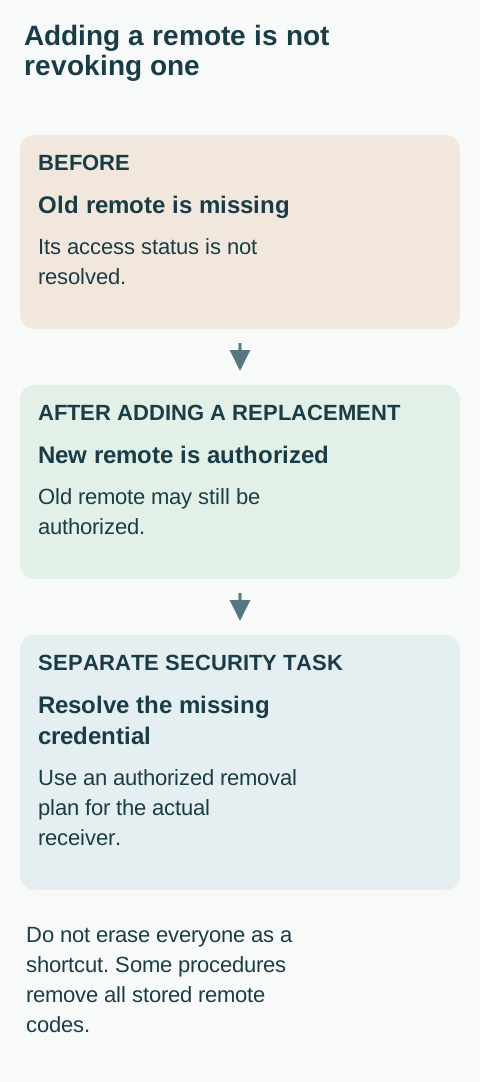 Open full diagram
Gather the model-specific documents
Find the operator model, receiver model where separate, and the exact remote or keypad model. Use exterior labels or existing handover records without entering a hazardous area or opening a live enclosure. An installer can identify inaccessible equipment. Keep any serial numbers or access codes private when requesting support.
Obtain the manufacturer’s instructions for both the receiving equipment and the accessory. Check that the instructions cover the actual revision or product family. A guide for a visually similar garage-door opener, an older receiver or another brand is not a substitute. Save the official source so you can refer to it during verification.
Confirm compatibility explicitly. Frequency by itself is not a complete match; the supported protocol and receiver family matter. A replacement advertised as universal may cover only particular products or require a separate compatible receiver. Do not buy or enroll based solely on casing color or button count.
Choose the right programming task
Adding a handheld transmitter, registering a wireless keypad, creating a user PIN in a wired access controller and teaching gate travel limits are different operations. The last of these changes how machinery moves and is not part of enrolling an access device. Do not enter limit-learning or force-adjustment menus for a remote problem.
The LA400UL manual offers several remote-control functions: an open-only button, a single-button open/close/stop function, and separately assigned commands. Those choices illustrate why the desired action must be selected before enrollment. They are not a reason to copy its sequence onto another receiver.
The same manual distinguishes remote and keypad memory arrangements and describes capacity-related consequences. Before adding a device, read what the applicable instructions say about occupied slots, duplicate entries and memory limits. If enrollment would replace another credential or requires erasure, pause for an authorized plan rather than sacrificing existing access.
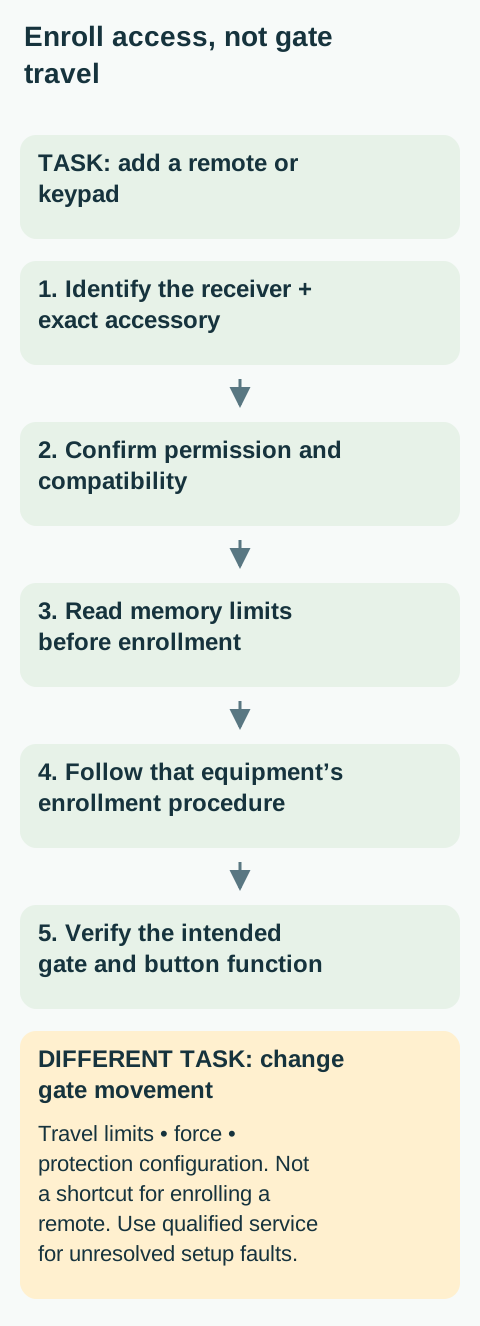 Open full diagram
Prepare for possible movement
Treat enrollment and verification as activities that can produce gate movement. Keep the full travel area and all trapping spaces clear. Observe from a normal safe control position and keep other people from issuing commands during the procedure. Children must not hold the remote being tested.
Do not reach through the gate to press a button, stand between a leaf and a post, or work inside an exposed electrical cabinet. If the documented enrollment control is accessible only to service personnel, have an installer or manager perform that part. A short programming task does not make electrical exposure or a pinch zone acceptable.
An existing mechanical fault or protective-device fault must be resolved before a new control is used. Programming is not a way around a gate that refuses to close for safety reasons. For a system that does not respond to any normal control, start with safe gate fault triage instead.
Follow one exact procedure, without improvisation
With the equipment confirmed and the site safe, follow only the manufacturer’s enrollment instructions for that receiver and accessory. Read the whole relevant section first, including time limits, expected confirmation and exit behavior. Do not combine the first steps of one online tutorial with the final steps of another.
Distinguish a press-and-release instruction from a press-and-hold instruction. Do not keep holding a programming button because no confirmation appeared. On many systems, other operations are assigned to different button durations or menu states. If the expected confirmation does not occur, stop and consult the documented failure or timeout behavior.
Do not enter a real shared PIN into a public note, send it with photographs, or leave an administrator code written on the outside of a keypad. Use the approved credential-management process. This guide deliberately does not provide a generic PIN, master code, factory reset or method of copying someone else’s transmitter.
Verify the intended function, not just a beep
An enrollment light or tone is not the entire acceptance test. From a safe position with the path clear, verify that the intended device operates the intended gate with the intended action. If a button was meant to open only, do not assume a different command pattern is acceptable because the gate moved.
Check the outcome with the responsible manager, including any established control that could have been affected by the documented operation. Do not keep cycling the gate unnecessarily. If a prior credential stopped working or the new device triggers an unexpected entrance, stop using it and have the enrollment corrected.
Accessory enrollment does not certify the protective system or installation. Continue the manufacturer’s required safety and maintenance checks independently. Never test entrapment protection with a person or vehicle positioned in the gate’s path.
When enrollment does not succeed
Record the receiver and accessory models, the official procedure followed, the confirmation observed and whether the device had previously worked. State whether another authorized control operates the gate. Avoid repeated resets that erase the evidence or change several things at once.
If a formerly working remote has simply stopped, first use battery, range and compatibility troubleshooting. Re-enrollment is not automatically needed after every battery change, and the accessory’s own instructions determine what applies. Do not confuse a depleted battery with a missing credential.
For a new device, unresolved compatibility, memory capacity or permission questions belong with the installer or property manager. Finish with a record of the accessory model, assigned function, authorized user and official manual. Keep secret codes in the approved private system, not in a publicly visible maintenance log.
Based on the official LiftMaster LA400UL and HySecurity SlideSmart DC. These are U.S.-market examples, not interchangeable operating instructions. Use the documents for the equipment actually installed.
Related Posts
 Practical Guide
Open a Driveway Gate With Your Phone: Compatibility and Control
Check gate phone-access compatibility, network dependencies, position feedback and user permissions without compromising safe operation.
 Practical Guide
Gate Remote Not Working: Battery, Range and Compatibility Checks
Find out whether one gate remote has failed or the gate itself is unavailable, without erasing credentials or changing the operator.
Sources
Manufacturer instructions and references for this guide. Match the document to your exact product.
- LiftMaster LA400ULsupport.chamberlaingroup.com
- HySecurity SlideSmart DCsupport.hysecurity.com
Photo credits
- Identify the exact keypad, receiver and control model before programming. This entrance view is not a programming procedure. Glyn Baker · CC BY-SA 2.0 · Unmodified photograph. Glyn Baker CC BY-SA 2.0