Add a Second Garage Door to myQ Without Mixing Up the Doors
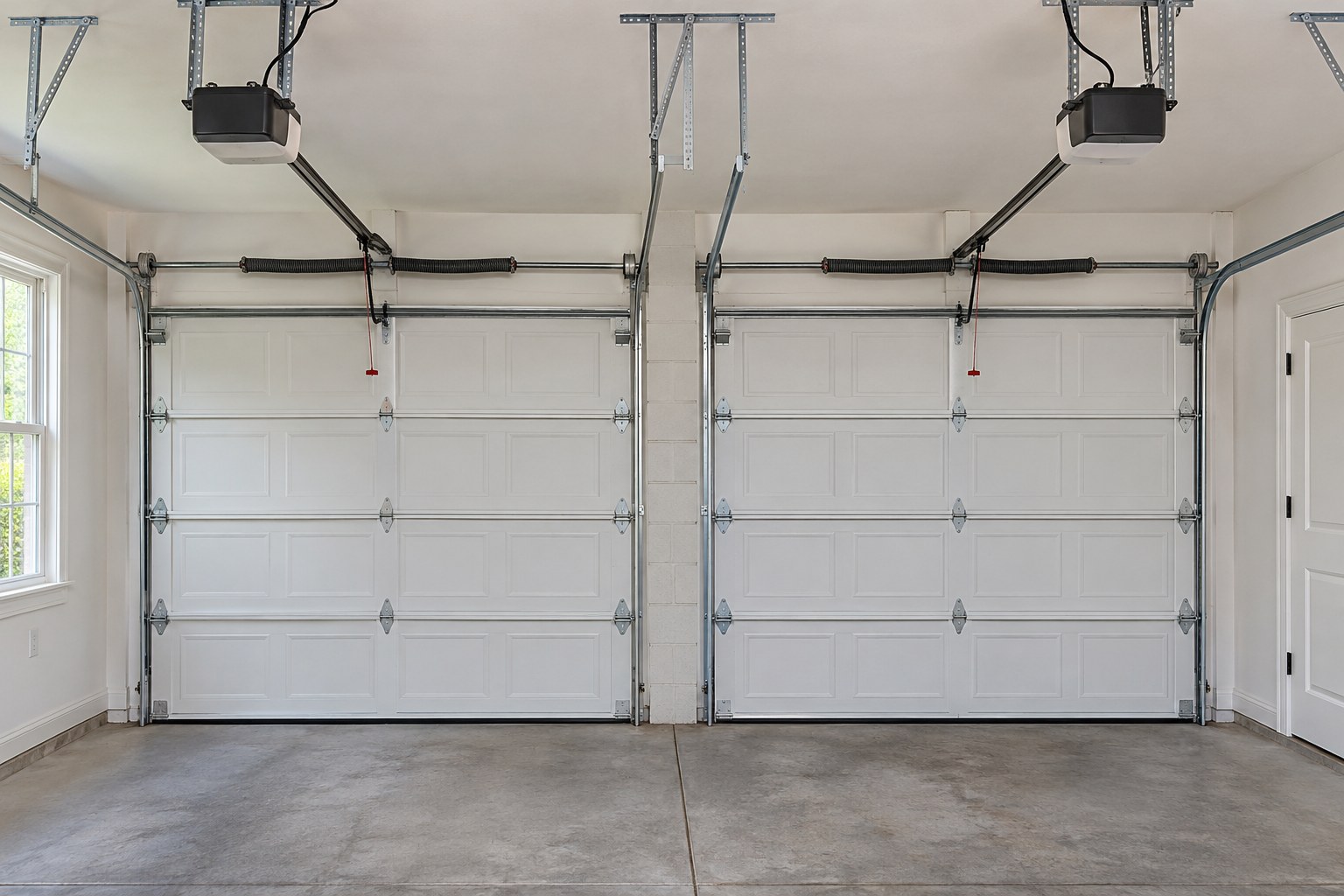
A second door is a second physical device, not a second person using your existing door. Start by identifying the hardware for each opening. Record the opener model, whether it has built-in Wi-Fi, and whether you already use a separate myQ hub. Photograph the labels without moving or dismantling equipment.
1. Choose the right setup path
For Smart Garage Hub or Smart Garage Control, Chamberlain documents adding a separate compatible door sensor for the second opening. Do not assume any wireless tilt sensor works. Check the hub and sensor identifiers together before ordering. A built-in Wi-Fi opener follows its own device-setup instructions rather than automatically needing an add-on sensor. If you are uncertain which system you have, stop at identification rather than buying duplicate hardware.
 Open full diagram
2. Prepare clear names and a safe test area
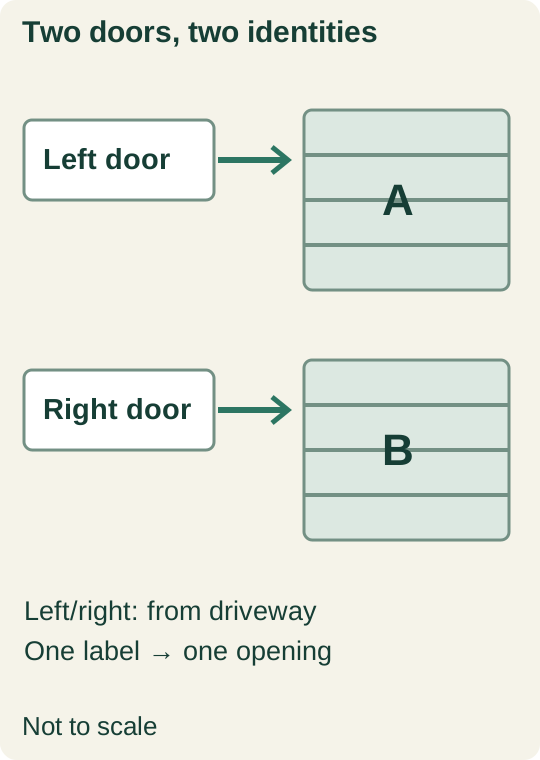
Use names such as Left Door and Right Door, defined as viewed from the driveway. Avoid two identical default names. Keep children, pets, vehicles and stored objects outside both doors' travel paths. Arrange testing while you can see both openings; do not test remotely from elsewhere.
3. Add and verify one device at a time
For an add-on hub, follow its second-sensor instructions: pair the compatible sensor, install it as directed, then pair the intended opener. For a built-in Wi-Fi opener, add that opener as its own device using its model-specific setup path; do not select the second-sensor path merely because it is your second door. Do not hold a Learn button or erase memory unless your exact instructions require it. App labels can change; a different screen is a reason to check the model's instructions, not improvise a reset.
 Open full diagram
4. Check the mapping before sharing access
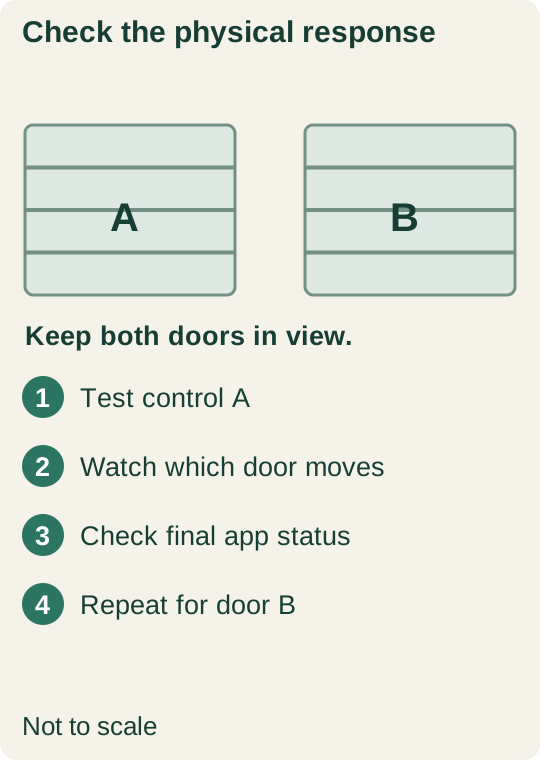
With both doors in view, operate one named device and verify which physical door responds. Compare the app's final open/closed state with the actual door. Repeat for the other opening. If one command activates both, stop testing and use the manufacturer's dedicated multiple-door troubleshooting instructions. Changing the displayed name does not correct a mistaken pairing.
Keep a small handover record
Record which sensor belongs to which door, installation date, and the model labels. Do not include passwords. Once mapping is correct, review which doors each household member may access.
Your two-door verification log
- Opening A: device name, opener model, hub or built-in Wi-Fi, observed physical response.
- Opening B: the same fields, recorded separately.
- For each test: only the intended door moved, and the final app status matched the real door.
- If the mapping is wrong, stop. Renaming a tile does not repair radio pairing.
Common questions
Do I need a second myQ account?
Two openings do not, by themselves, require two accounts. Identify and add the second physical device; sharing access is a separate task.
Can I use any wireless door sensor?
No. Verify compatibility with the identified hub and current manufacturer instructions before buying.
What if my first door disappears?
Check the selected home and device list. Do not factory-reset both devices as a first response.
Related Posts
For app basics, read How Does the myQ App Work?. For invitations and permissions, use Share, Remove, or Transfer myQ Garage Access. A second door is not a reason to follow the reset procedure in How to Reset myQ: Reconnect First, Factory-Reset Only When Needed.
 DIY Guide
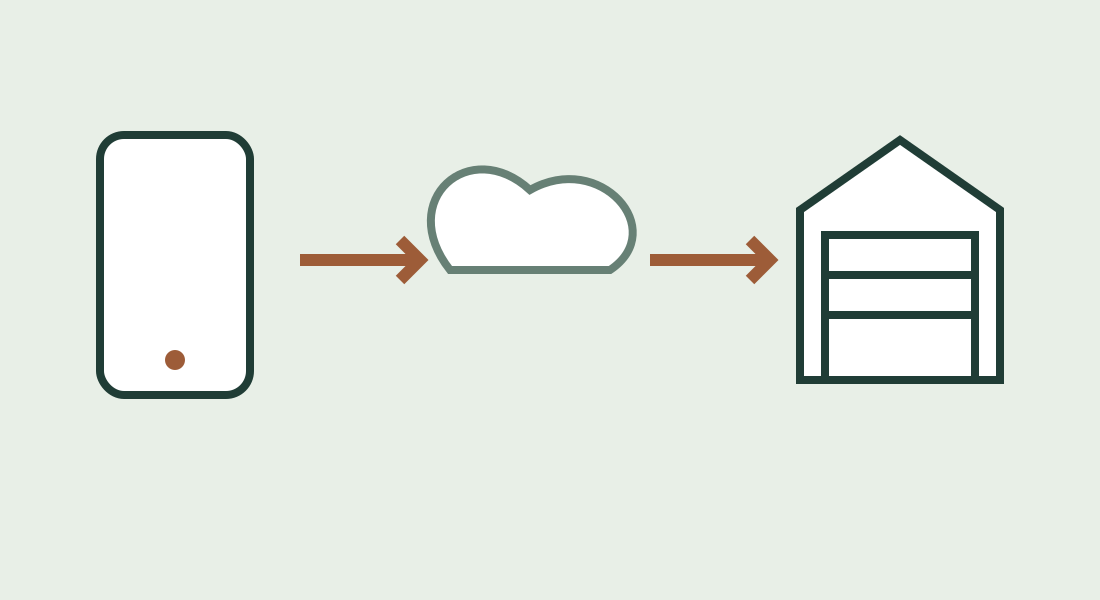
How Does the myQ App Work?
Learn how myQ connects your phone to a compatible garage door opener, what the sensor does, and how Wi-Fi, offline use and subscriptions differ.
 Practical Guide
Share, Remove, or Transfer myQ Garage Access
Choose myQ user permissions, troubleshoot invitations, remove access, and plan an ownership handover without confusing Wi-Fi resets with account removal.
 DIY Guide
How to Reset myQ: Reconnect First, Factory-Reset Only When Needed
Restore an existing myQ device after network changes, identify built-in Wi-Fi versus a hub, and avoid unnecessary ownership or accessory resets.
Sources
Manufacturer instructions and references for this guide. Match the document to your exact product.
- Chamberlain: adding a second door sensorsupport.chamberlaingroup.com
- Chamberlain: adding devices to a myQ accountsupport.chamberlaingroup.com