How to Reset myQ: Reconnect First, Factory-Reset Only When Needed
Quick answer
If myQ stopped working, first identify the device and the error. For an existing device that went offline after a router or password change, use Update Wi-Fi Settings in its existing myQ device flow. A factory reset is a different operation that can remove configuration and access associations.
We recommend reconnecting before resetting. An offline status does not by itself mean your garage door's remote controls or travel settings need to be erased.
What you need
Have the authorized myQ account, device model, home Wi-Fi name and password, and a phone with the permissions requested by the official setup flow. Keep credentials private. Do not post a full serial number or account screen publicly when asking for help.
Allow about 15–30 minutes for identification and a reconnection attempt, excluding an internet outage or ownership-resolution process. Keep another authorized entry method available while the app is unavailable.
Any movement test must be made with the door's path clear and its condition safe. Do not treat an app command as a workaround for a damaged door or a closing-sensor failure.
1Identify which myQ device is offline
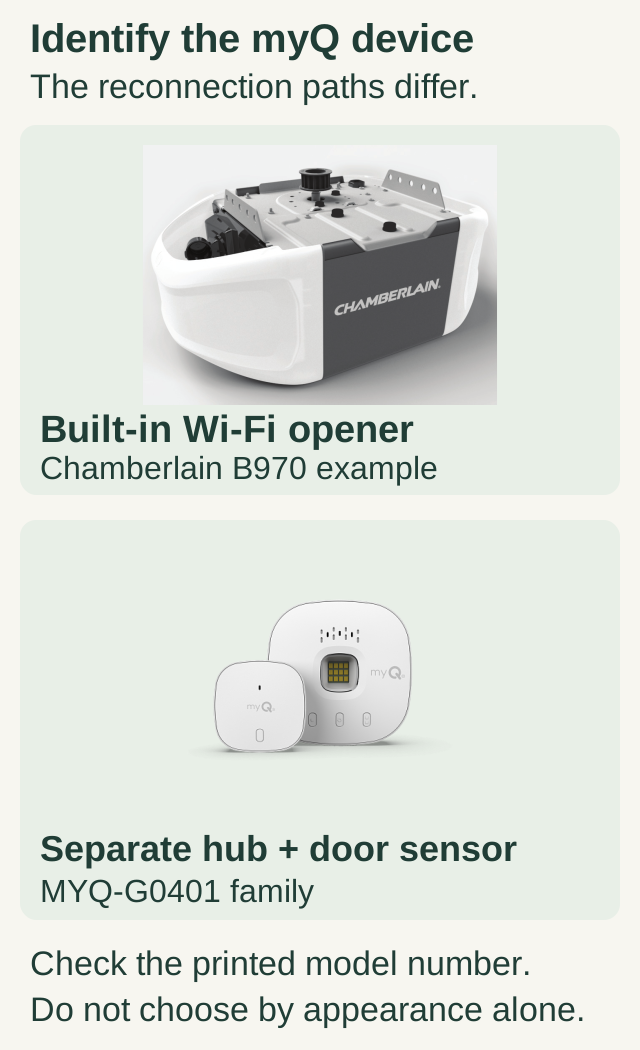
Scroll within the image if needed, or open the full-size view. The key details are also written below.
A Chamberlain B970 is shown as a built-in Wi-Fi opener example. The MYQ-G0401 family is shown as a separate hub with a door sensor.
These architectures use different reconnection paths. Check the printed full model number; appearance alone does not identify the device or establish interchangeability.
A myQ system can involve built-in opener Wi-Fi, a separate Smart Garage Control/Hub, a camera, or another accessory. Each has its own setup and reset route. A camera's reset control is not the opener's radio-memory control.
Check the label and physical arrangement. A separate hub is a distinct box near the opener; built-in Wi-Fi belongs to the motor unit itself. Read the error text and note the LED state on the device actually being diagnosed.
2Confirm this is an existing-device reconnection
The router-change route is appropriate when the device previously worked, remains in your account, and went offline after the network name, password, router, or internet provider changed.
It is not the same as first-time setup or taking over a device associated with another account. If you see Error 310 or an ownership message, stop this route and use the manufacturer's authorized ownership-resolution process. Do not remove or reset another person's device to bypass that boundary.
If the home internet is down, first establish whether the connection itself has returned. Re-entering correct credentials during an upstream outage will not repair the internet service.
3Reconnect through the existing device
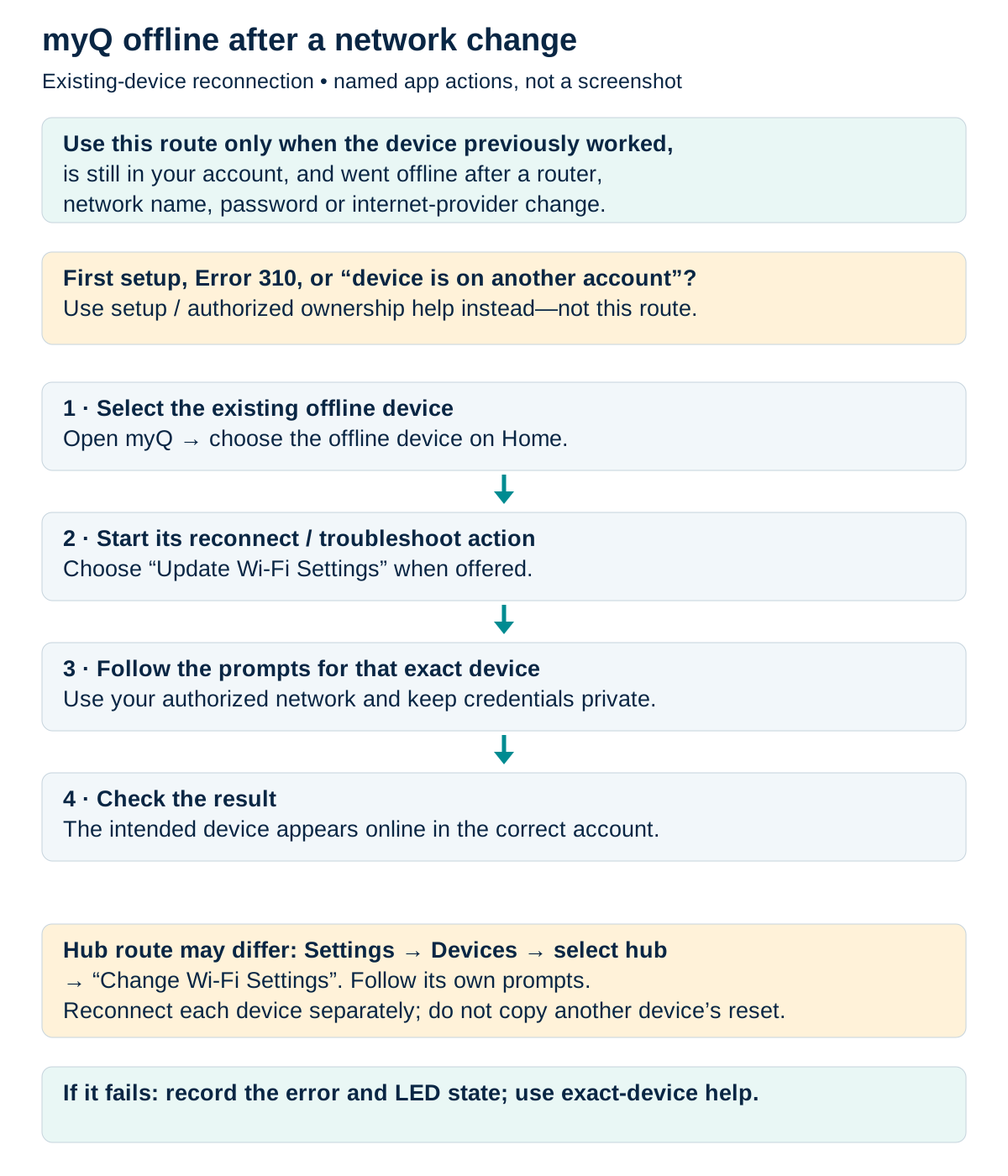
Reconnect an existing myQ device after a network change
Use this route only for a previously working device still in your myQ account after a router, network name, password or provider change. First setup, ownership issues and Error 310 need their separate official routes.
Scroll sideways for detail, or open the full-size diagram. The complete instructions are written below.
Open full-size diagram and zoom (new tab)
- Use this route only for a previously working device still in your account. First setup, moving/ownership issues and Error 310 need their separate official routes.
- Open myQ and select the offline device on Home. Choose its reconnect/troubleshoot action, then Update Wi-Fi Settings when offered. Follow the prompts for that exact device.
- For a hub, the documented path can be Settings → Devices → select hub → Change Wi-Fi Settings. Do not copy a camera or opener reset gesture.
- Use your authorized network; keep credentials private. Reconnect each device separately.
- Confirm the intended device is online in the correct account. If a movement test is appropriate, keep the door clear and fully in view. Record errors/LED state if it fails and use exact-device help.
Manufacturer instructions
For the matching previously connected device, open myQ, select the offline device, and use its reconnect/troubleshoot option followed by Update Wi-Fi Settings. A device-settings route may also expose that action. Follow the prompts for the identified hardware and select your authorized home network.
Keep the phone near the device during setup and supply the requested permissions. Menu wording can vary with the app version; choose the operation that updates the existing device's network rather than deleting the device and starting an ownership transfer.
B970 only: if the reconnect app asks you to use LEARN
Use this step only for the identified B970, previously connected and still in your authorized myQ account, when the current existing-device reconnect prompts specifically ask you to use its LEARN control. It is not a first-setup, camera, hub, ownership-error or memory-erasing procedure. Keep the door’s path clear and in view, and use safe, stable access to the opener.
On this B970, press and release the round yellow LEARN button three separate times. Do not hold it down or use the black adjustment control. The B970 manual describes one beep and a flashing blue Wi-Fi LED when Wi-Fi setup mode starts. If that response does not occur, stop and follow the exact model’s current support instructions; do not extend a hold or guess another reset.
Return to the current myQ reconnect prompts for this existing device. A flashing setup light is not proof that reconnection is complete: confirm the intended device returns online in the correct account, and follow the safe verification below. See the manufacturer’s existing-device reconnection instructions and B970 manual 114A5036, page 32.
B970 only: conditional LEARN step during existing-device reconnection
- Identified previously connected B970 still in authorized account; only when current reconnect prompts ask.
- No long hold; no black adjustment; no memory erase; not first setup/camera/hub/ownership error.
- Keep path clear and visible; safe stable access; no expected response means stop.
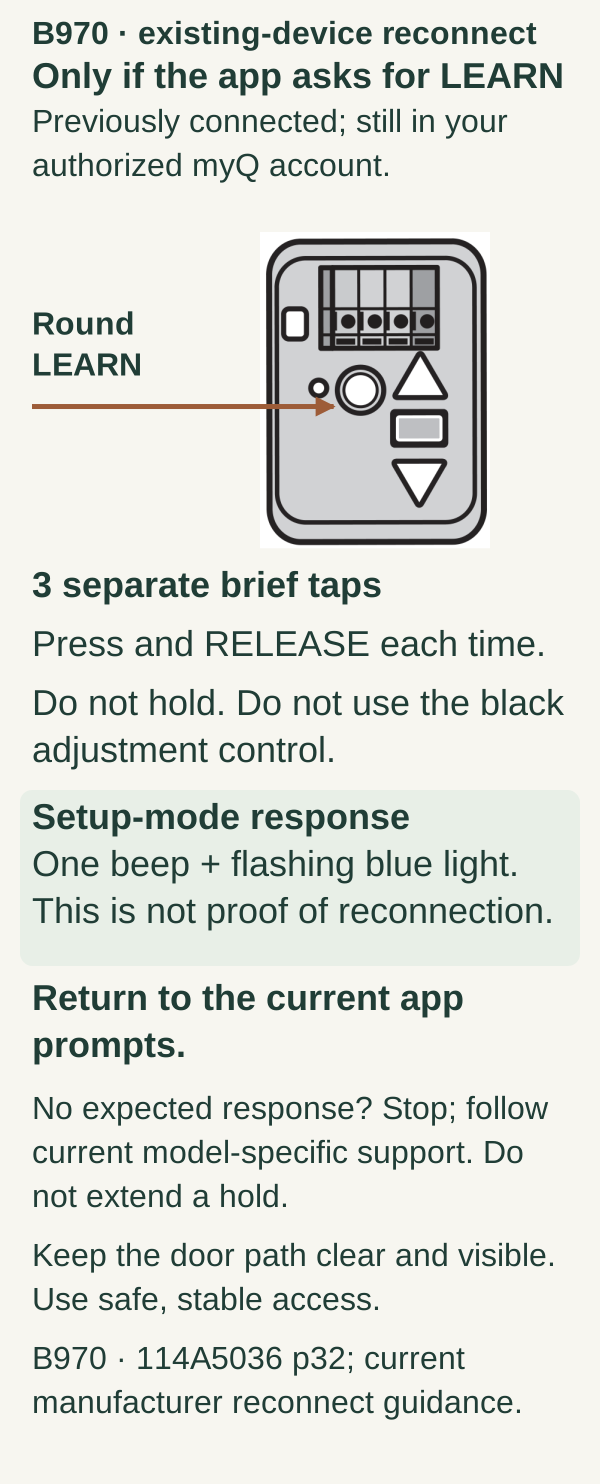
Scroll within the image if needed, or open the full-size view. The key details are also written below.
For the previously connected B970 still in your authorized account, use this control only if the current reconnect app asks for LEARN. Press and release the round LEARN button three separate times. Do not hold it or use the black adjustment control.
The documented setup-mode response is one beep and a flashing blue light. This does not prove that reconnection is complete. Return to the current app prompts for the existing device.
If the expected response does not occur, stop and follow current model-specific support. Do not extend a hold. Keep the door path clear and visible and use safe, stable access.
4Use the correct LED troubleshooting branch
For the covered Smart Garage Hub/Smart Garage Control guidance, blinking blue indicates that the hub is not connected to Wi-Fi and is ready for setup. Check the password, keep the phone near the hub, and use the supported 2.4 GHz network with adequate garage coverage. Solid green is the documented successful online indication for that route.
Do not apply that entire LED table to an unidentified camera or different-generation device. Likewise, avoid disabling router security or making broad network changes just because a setup attempt failed.
If a built-in opener is the device, use its own LED-specific instructions. The hub and opener may have different physical controls even when the app uses similar language.
5Decide whether any reset is actually necessary
If reconnection still fails, review the exact device's troubleshooting and the observed LED/error state. A network-settings clear may be appropriate where the matching guide directs it. A factory reset has broader consequences and should be selected deliberately, not used as a synonym for reconnect.
Before a factory reset, list what the manufacturer says will be removed and how it will be restored. For some Wi-Fi openers, this can include remotes, keypads, vehicle programming, connected accessories, and account association. A separate hub has its own consequences.
We recommend keeping the working hardware access intact whenever the narrower network route can solve the problem. Do not begin an all-device rebuild without the authority and information to restore it.
Verify more than the app's icon
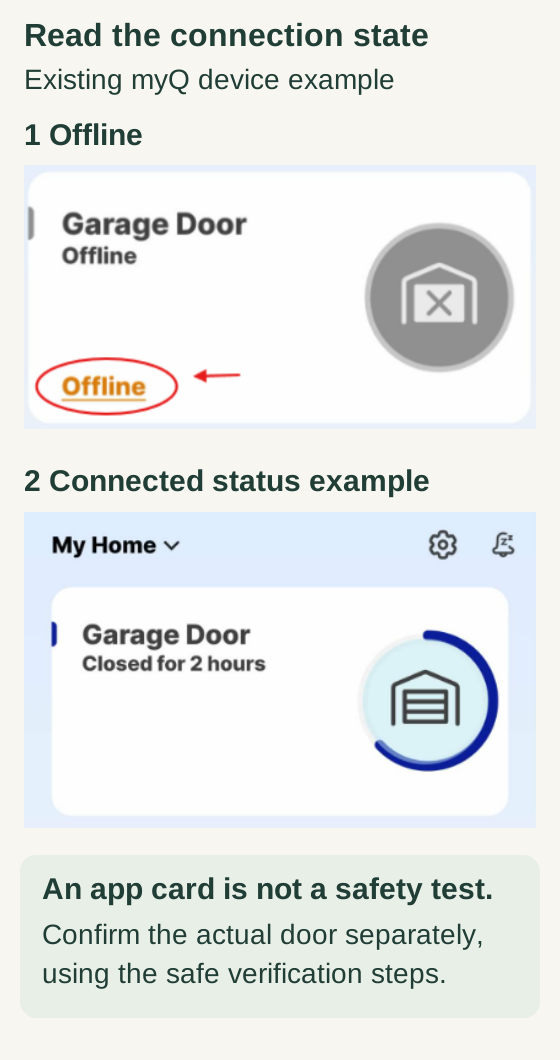
Scroll within the image if needed, or open the full-size view. The key details are also written below.
The first manufacturer interface example shows a Garage Door Offline card. The connected example reports Closed for 2 hours. These are separate examples, not recorded before-and-after observations from one household; app layouts may change.
An online card is a connection-state cue, not independent proof of the actual door position or a successful safety test. Follow the safe physical verification steps separately.
Confirm the intended device appears online in the correct account. If a safe local movement test is appropriate, watch the door through the entire command and verify the reported state afterward. For a camera, check the camera function separately from door operation.
Also check a handheld remote that should remain unaffected. If it now fails, investigate whether a broader erase occurred during troubleshooting instead of assuming a new unrelated failure.
Common mistakes and questions
Should I delete and reinstall the app? An app reinstall does not inherently repair an opener's Wi-Fi connection. Diagnose the device and network state first.
The door works from a remote. Is myQ definitely broken? That shows the local control path works; it does not identify whether the app problem is Wi-Fi, internet, service, or account-related.
Can a factory reset remove another account? Ownership must be resolved legitimately. Use the manufacturer's ownership process rather than treating a physical reset as permission to take control.
Key takeaways
Identify the hardware, preserve the existing device when reconnecting, and follow its specific LED/error branch. A successful recovery restores the intended account and function without unnecessary access changes.
Explore guides · About this guide
Was this guide useful?
Your choice stays in this browser only. It is not sent to us.
Sources & manuals1
Manufacturer instructions and references for this guide. Match the document to your exact product.
- Manufacturer instructions · manufacturer’s existing-device reconnection instructionssupport.chamberlaingroup.com